Playwright Accessibility Testing with TypeScript
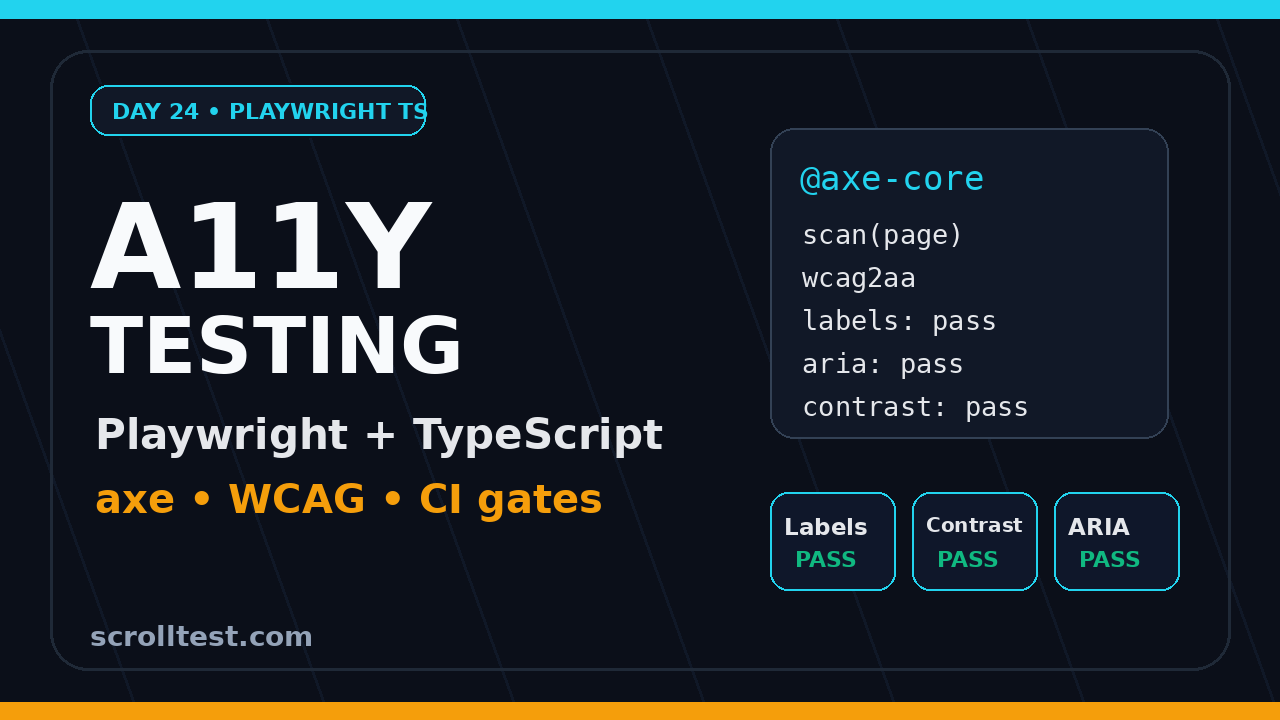
Playwright accessibility testing with TypeScript is where I move accessibility checks from a last-minute audit into the normal pull request flow. On Day 24 of this Playwright + TypeScript series, we add axe scans, WCAG-focused rules, fixtures, attachments, and CI guardrails without pretending that automation replaces human accessibility testing.
Here is the honest position: automated checks catch repeatable defects such as missing labels, poor contrast, duplicate IDs, invalid ARIA, and broken document structure. They do not prove the product is accessible. The useful goal is smaller and more practical: block obvious regressions early, attach evidence to reports, and give the team a repeatable checklist before a manual audit.
Table of Contents
- Why accessibility tests belong in Playwright
- Project setup for axe and TypeScript
- First Playwright accessibility testing with TypeScript spec
- Scan only the right page state
- Build a reusable axe fixture
- Handle known violations without hiding risk
- CI reporting and artifacts
- Common pitfalls I see in teams
- Key takeaways
- FAQ
Contents
Why accessibility tests belong in Playwright
Playwright already drives the browser like a user. It can log in, open a modal, choose a plan, submit a form, and reach the exact UI state where accessibility bugs usually hide. That makes it a good home for automated accessibility checks.
The official Playwright accessibility testing guide recommends the @axe-core/playwright package. The same guide is clear about the limit: automated tests detect some common accessibility problems, while many issues still need manual assessment and inclusive user testing.
I like that framing because it keeps the team honest. We are not selling a magic compliance button. We are adding a safety net that runs on every pull request.
What automation can catch reliably
In real Playwright suites, automated accessibility scans are useful for defects that have clear machine-detectable rules:
- Form controls without accessible labels.
- Buttons that expose no accessible name.
- Color contrast issues on rendered content.
- Duplicate IDs that confuse assistive technologies.
- Invalid ARIA attributes or broken ARIA relationships.
- Missing document language or title issues.
- Dialogs that expose bad structure after opening.
These are not small bugs. A checkout page with unlabeled payment fields can block a screen reader user from completing a purchase. A modal with broken semantics can trap a keyboard user in a dead end. This is product quality, not decoration.
What automation cannot prove
Do not let a green axe report become the end of accessibility testing. It does not tell you if the task flow makes sense to a screen reader user. It does not judge whether error copy is clear. It does not confirm that keyboard focus order feels natural across a complex journey.
The W3C WCAG overview describes WCAG as an international standard for making web content more accessible to people with disabilities. Automated checks help with part of that work. They are not the whole standard, and they are not a replacement for human review.
Why TypeScript helps
TypeScript matters because accessibility checks become part of your framework, not random scripts. You can type the fixture, type the violation summary, define team-owned scan tags, and make the test output predictable.
If you are catching up on the series, read the Playwright TypeScript setup guide first, then revisit Playwright locators and assertions. Good accessibility tests depend on stable locators and clear assertions.
Project setup for axe and TypeScript
Start with an existing Playwright Test project. If this is a fresh repo, create it with the normal installer. For this article I assume strict TypeScript, Chromium in CI, and Playwright Test as the runner.
npm init playwright@latest
npm install -D @axe-core/playwright
Recommended folder structure
Keep accessibility tests visible. Do not bury them in a helper folder where nobody opens them.
tests/
  accessibility/
    checkout.accessibility.spec.ts
    account.accessibility.spec.ts
  e2e/
    checkout.spec.ts
fixtures/
  axe.fixture.ts
utils/
  accessibility.ts
playwright.config.ts
This structure gives you three clean choices. You can run only accessibility specs, run them beside E2E specs, or reuse the fixture inside an existing journey test after the page reaches an important state.
Playwright config for accessibility runs
Accessibility scans are browser work. They need the app to be stable, authenticated where needed, and rendered in the viewport you care about. I usually create a dedicated project so the team can run it separately in CI.
// playwright.config.ts
import { defineConfig, devices } from '@playwright/test';

export default defineConfig({
  testDir: './tests',
  timeout: 60_000,
  expect: { timeout: 10_000 },
  reporter: [['html'], ['list']],
  use: {
    baseURL: process.env.BASE_URL ?? 'http://localhost:3000',
    trace: 'retain-on-failure',
    screenshot: 'only-on-failure',
    video: 'retain-on-failure'
  },
  projects: [
    {
      name: 'chromium',
      use: { ...devices['Desktop Chrome'] }
    },
    {
      name: 'a11y-chromium',
      testMatch: /.*\.accessibility\.spec\.ts/,
      use: { ...devices['Desktop Chrome'] }
    }
  ]
});
Do not start with every browser and every viewport. Start with one stable desktop project, make the signal useful, then add mobile or cross-browser coverage when the team can handle the failures.
First Playwright accessibility testing with TypeScript spec
The first version should be boring. Navigate, wait for the user-facing page state, run axe, and assert that violations are empty.
// tests/accessibility/home.accessibility.spec.ts
import { test, expect } from '@playwright/test';
import AxeBuilder from '@axe-core/playwright';

test('home page has no automatically detectable accessibility violations', async ({ page }) => {
  await page.goto('/');
  await expect(page.getByRole('heading', { name: /welcome/i })).toBeVisible();

  const results = await new AxeBuilder({ page })
    .withTags(['wcag2a', 'wcag2aa', 'wcag21a', 'wcag21aa'])
    .analyze();

  expect(results.violations).toEqual([]);
});
The tag list matters. Deque documents axe rule tags in its axe API documentation. Playwright’s guide also shows how to use withTags() when you want scans aligned to WCAG A and AA rules.
Screenshot description
Make violation output readable
The default diff for a full axe object can be noisy. I prefer a small formatter that prints the rule ID, impact, help text, and target selector.
// utils/accessibility.ts
import type { AxeResults, Result } from 'axe-core';

export type A11yViolation = Pick<Result, 'id' | 'impact' | 'help' | 'helpUrl'> & {
  targets: string[];
};

export function summarizeViolations(results: AxeResults): A11yViolation[] {
  return results.violations.map((violation) => ({
    id: violation.id,
    impact: violation.impact,
    help: violation.help,
    helpUrl: violation.helpUrl,
    targets: violation.nodes.flatMap((node) => node.target)
  }));
}
Now your assertion failure gives the developer something they can fix in minutes.
import { summarizeViolations } from '../../utils/accessibility';

const results = await new AxeBuilder({ page }).analyze();
expect(summarizeViolations(results)).toEqual([]);
Run command
npx playwright test --project=a11y-chromium
npx playwright show-report
For local debugging, run the same spec in UI mode:
npx playwright test tests/accessibility/home.accessibility.spec.ts --ui
Scan only the right page state
A common mistake is scanning only the landing page. Most accessibility bugs are hidden behind interactions: menu open, validation error visible, modal active, tooltip expanded, cart item removed, or payment iframe rendered.
Playwright is useful because it can move the page into those states before the scan.
Scan a form after validation errors
// tests/accessibility/signup.accessibility.spec.ts
import { test, expect } from '@playwright/test';
import AxeBuilder from '@axe-core/playwright';
import { summarizeViolations } from '../../utils/accessibility';

test('signup form errors remain accessible', async ({ page }) => {
  await page.goto('/signup');

  await page.getByRole('button', { name: /create account/i }).click();
  await expect(page.getByText(/email is required/i)).toBeVisible();

  const results = await new AxeBuilder({ page })
    .include('[data-testid="signup-form"]')
    .withTags(['wcag2a', 'wcag2aa', 'wcag21a', 'wcag21aa'])
    .analyze();

  expect(summarizeViolations(results)).toEqual([]);
});
This is better than scanning a clean form because validation errors often introduce broken aria-describedby references, missing live regions, or color-only error indicators.
Scan a modal after opening it
test('delete confirmation dialog is accessible', async ({ page }) => {
  await page.goto('/settings/team');

  await page.getByRole('button', { name: /remove member/i }).click();
  const dialog = page.getByRole('dialog', { name: /remove team member/i });
  await expect(dialog).toBeVisible();

  const results = await new AxeBuilder({ page })
    .include('[role="dialog"]')
    .analyze();

  expect(summarizeViolations(results)).toEqual([]);
});
I still add keyboard checks around the scan because axe is not a complete interaction tester.
await page.keyboard.press('Tab');
await expect(page.getByRole('button', { name: /cancel/i })).toBeFocused();

await page.keyboard.press('Escape');
await expect(dialog).toBeHidden();
That small addition catches problems the scan may not flag clearly. The best accessibility tests combine semantic checks, keyboard behavior, and human review notes.
Screenshot description
Build a reusable axe fixture
Once the first two specs work, move the shared configuration into a fixture. This stops copy-paste and makes rules consistent across the team.
// fixtures/axe.fixture.ts
import { test as base } from '@playwright/test';
import AxeBuilder from '@axe-core/playwright';

type AxeFixture = {
  makeAxeBuilder: () => AxeBuilder;
};

export const test = base.extend<AxeFixture>({
  makeAxeBuilder: async ({ page }, use) => {
    const makeAxeBuilder = () =>
      new AxeBuilder({ page })
        .withTags(['wcag2a', 'wcag2aa', 'wcag21a', 'wcag21aa'])
        .exclude('[data-testid="third-party-chat-widget"]');

    await use(makeAxeBuilder);
  }
});

export { expect } from '@playwright/test';
Then use the fixture in a spec:
// tests/accessibility/account.accessibility.spec.ts
import { test, expect } from '../../fixtures/axe.fixture';
import { summarizeViolations } from '../../utils/accessibility';

test('account page passes configured accessibility scan', async ({ page, makeAxeBuilder }) => {
  await page.goto('/account');
  await expect(page.getByRole('heading', { name: /account/i })).toBeVisible();

  const results = await makeAxeBuilder()
    .include('main')
    .analyze();

  expect(summarizeViolations(results)).toEqual([]);
});
Why fixture ownership matters
Without a fixture, every developer chooses different tags, exclusions, and reporting style. After 30 specs, nobody knows what the suite really means.
With a fixture, the team can review accessibility policy in one file. That is a better code review conversation. You can ask: why are we excluding the chat widget? When will we remove it? Which WCAG tags are required for the product?
Attach full results for debugging
Playwright supports test attachments. The official guide shows this pattern because the full axe result contains passed rules, incomplete checks, and useful debugging data.
// tests/accessibility/checkout.accessibility.spec.ts
import { test, expect } from '../../fixtures/axe.fixture';
import { summarizeViolations } from '../../utils/accessibility';

test('checkout page accessibility scan attaches full report', async ({ page, makeAxeBuilder }, testInfo) => {
  await page.goto('/checkout');
  await expect(page.getByRole('heading', { name: /checkout/i })).toBeVisible();

  const results = await makeAxeBuilder().include('main').analyze();

  await testInfo.attach('axe-results', {
    body: JSON.stringify(results, null, 2),
    contentType: 'application/json'
  });

  expect(summarizeViolations(results)).toEqual([]);
});
This is useful when a CI failure lands in Slack. The developer can open the Playwright report, download the JSON, read the help URL, and fix the component.
Handle known violations without hiding risk
Every mature product has accessibility debt. The worst response is to disable scans completely because the first run finds 42 violations. The second-worst response is to exclude half the page forever.
Handle known violations like any other technical debt: visible, owned, dated, and small enough to remove.
Option 1: exclude a narrow selector
const results = await makeAxeBuilder()
  .exclude('[data-testid="legacy-date-picker"]')
  .include('main')
  .analyze();
Use this only when the selector is narrow. Excluding main, body, or a giant layout container makes the test meaningless.
Option 2: disable a specific rule temporarily
const results = await makeAxeBuilder()
  .disableRules(['color-contrast'])
  .include('[data-testid="marketing-banner"]')
  .analyze();
This is acceptable when a team is fixing a known visual system issue in a planned release. It is not acceptable as a permanent escape hatch. Put the ticket number in the test name or a comment.
Option 3: snapshot only the known issue fingerprint
Playwright’s guide warns against snapshotting the entire violations array because it includes implementation details that change too easily. I agree. If you need a baseline, snapshot a small fingerprint.
function violationFingerprints(results: { violations: Array<{ id: string; nodes: Array<{ target: string[] }> }> }) {
  return results.violations.map((violation) => ({
    id: violation.id,
    targets: violation.nodes.flatMap((node) => node.target).sort()
  }));
}

test('legacy profile page does not add new accessibility debt', async ({ page, makeAxeBuilder }) => {
  await page.goto('/profile/legacy');

  const results = await makeAxeBuilder().include('main').analyze();

  expect(violationFingerprints(results)).toMatchSnapshot('legacy-profile-a11y.json');
});
This does not say the page is accessible. It says the known debt did not grow. That distinction matters in release notes and stakeholder updates.
CI reporting and artifacts
Accessibility tests should run in CI like any other quality gate. For most teams, I start with one dedicated job that runs the accessibility project after unit tests and before the full long regression.
# .github/workflows/accessibility.yml
name: Accessibility Checks

on:
  pull_request:
  workflow_dispatch:

jobs:
  accessibility:
    runs-on: ubuntu-latest
    steps:
      - uses: actions/checkout@v4
      - uses: actions/setup-node@v4
        with:
          node-version: 22
      - run: npm ci
      - run: npx playwright install --with-deps chromium
      - run: npm run start:test &
      - run: npx wait-on http://127.0.0.1:3000
      - run: npx playwright test --project=a11y-chromium
      - uses: actions/upload-artifact@v4
        if: always()
        with:
          name: playwright-accessibility-report
          path: playwright-report/
If your CI pipeline is already large, keep this job focused. Do not run 200 accessibility scans on the first day. Pick the 10 screens that matter most:
- Login.
- Signup.
- Password reset.
- Dashboard.
- Search results.
- Details page.
- Form with validation errors.
- Modal-heavy workflow.
- Checkout or payment screen.
- Account settings.
This list gives you more value than scanning 10 static marketing pages. In Indian service teams, I see this mistake often: the automation team reports 100% accessibility pass on pages no customer cares about, while the real transaction flow remains untested.
Use reports as developer feedback
A good failure message should answer three questions:
- Which rule failed?
- Which element is affected?
- Where can the developer read the fix guidance?
The helpUrl field from axe is useful here. Do not paste giant JSON into Slack. Attach the Playwright report and keep the message short.
Screenshot description
Screenshot to capture: GitHub Actions job named Accessibility Checks with a failed Playwright test and an uploaded artifact called playwright-accessibility-report. This makes the CI setup tangible for SDETs who need to explain it during framework reviews or interviews.
If you need a broader CI setup, connect this article with the Playwright GitHub Actions guide and the Playwright Trace Viewer guide. Accessibility failures become much easier to debug when traces, screenshots, and JSON attachments live together.
Common pitfalls I see in teams
Most accessibility automation failures are framework discipline problems, not tool problems. The team installs axe, adds three tests, sees red builds, and then quietly disables the job. Avoid these traps.
Pitfall 1: scanning before the page is ready
Do not run axe immediately after page.goto() if the page renders data asynchronously. Wait for a user-visible signal.
await page.goto('/orders');
await expect(page.getByRole('heading', { name: /orders/i })).toBeVisible();
await expect(page.getByTestId('orders-table')).toBeVisible();

const results = await makeAxeBuilder().include('main').analyze();
This avoids false confidence from scanning a loading skeleton or half-rendered DOM.
Pitfall 2: using CSS locators everywhere
If your accessibility tests need five CSS selectors to click a button, your app may already have weak semantics. Prefer role-based locators where possible.
// Better
await page.getByRole('button', { name: /save address/i }).click();

// Brittle
await page.locator('.footer > div:nth-child(2) button.primary').click();
Role locators double as a sanity check. If Playwright cannot find the button by role and accessible name, a screen reader user may also get a poor experience.
Pitfall 3: hiding third-party widgets without ownership
Teams often exclude chat widgets, analytics banners, and payment widgets. Sometimes that is practical. But someone still owns the user experience. Track it in a ticket and review the exclusion every sprint or release cycle.
Do not paste tags because a blog used them. Decide what your product needs. WCAG A and AA tags are common starting points. If the business has a specific legal or contract requirement, align with that requirement and get accessibility specialists involved.
Pitfall 5: no manual testing path
Automation should trigger deeper review, not replace it. Add a short manual checklist to your release process:
- Can the top user journey be completed with keyboard only?
- Is focus visible and logical?
- Do form errors announce clearly?
- Does the screen reader announce dialog name and purpose?
- Does zooming to 200% keep the task usable?
This is where SDETs can stand out. Many companies in India still treat accessibility as a compliance afterthought. A QA engineer who can add automated gates and explain manual coverage has a stronger story in product companies than someone who only runs canned scripts.
Key takeaways
Playwright accessibility testing with TypeScript gives your team a practical release gate for common accessibility regressions. It is not a full audit, but it is a strong daily safety net when you use it with discipline.
- Use
@axe-core/playwrightwith Playwright Test instead of a separate one-off scanner. - Scan important UI states such as validation errors, dialogs, checkout, and account settings.
- Keep axe configuration in a typed fixture so rules and exclusions are reviewed in one place.
- Attach full axe JSON results to Playwright reports for debugging.
- Handle known violations as visible debt, not invisible exclusions.
- Pair automated checks with keyboard and manual accessibility review.
For tomorrow’s framework work, treat accessibility as part of the same engineering system as locators, traces, CI, and reports. The team should not ask, “Did anyone remember accessibility?” The pull request should answer it automatically.
FAQ
Can Playwright prove my application is WCAG compliant?
No. Playwright with axe can detect many automatically testable issues, but WCAG conformance needs broader evaluation. Use it as a regression gate and evidence collector, then add manual accessibility review for critical flows.
Should accessibility tests run on every pull request?
Yes, but keep the first version small. Run the top 5 to 10 screens on every pull request. Add more pages after the team trusts the signal and has a process for fixing failures.
Should I fail the build for existing violations?
For new projects, yes. For legacy apps, create a baseline for known issues and fail the build when new violations appear. Do not let the baseline become permanent. Give every exception an owner and a removal date.
Do I need accessibility tests in all browsers?
Not on day one. Start with Chromium because it keeps CI fast. Add other browsers if your product, customer base, or support matrix requires it. Accessibility coverage that developers respect is better than broad coverage everyone ignores.
What should manual testers learn from this?
Learn the concepts first: accessible names, roles, labels, focus order, keyboard navigation, and WCAG basics. Then learn enough Playwright TypeScript to automate repeatable checks. That combination is powerful for SDET interviews and real product work.