Playwright Drag and Drop Testing with TypeScript: Day 39
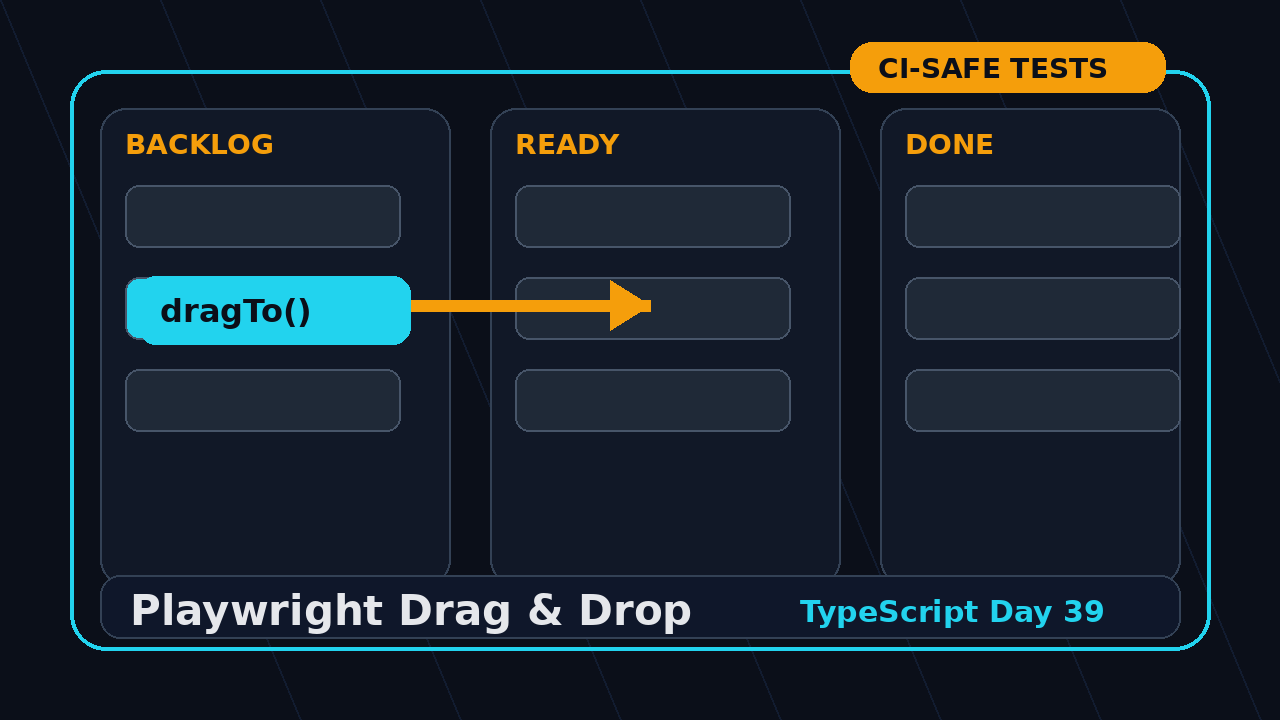
Playwright drag and drop testing looks simple until the UI uses HTML5 drag events, virtualized lists, auto-scroll, or a Kanban board with business rules behind every drop. Day 39 of the Playwright + TypeScript series gives you a practical pattern I use when a drag works on my laptop but fails in CI.
We will test sortable lists, board columns, manual mouse movement, screenshots, and the common traps that make drag-and-drop tests flaky. The goal is not to simulate every pixel of a human hand. The goal is to prove the user can move the right item to the right place and that the app saves the result.
Table of Contents
- Why Drag and Drop Testing Is Different
- Setup: Demo Page and Test Structure
- Playwright Drag and Drop Testing Basics
- Testing Sortable Lists
- Testing Kanban Board Drops
- When dragTo Is Not Enough
- Screenshots, Traces, and Debugging
- CI Pitfalls and Fixes
- Key Takeaways
- FAQ
Contents
Why Drag and Drop Testing Is Different
Normal clicks have a clean mental model. The element is visible, Playwright waits for actionability, the click happens, and the assertion checks the result. Drag and drop has more moving parts. A browser can fire mousedown, several mousemove events, dragstart, dragenter, dragover, drop, and dragend.
The HTML Standard drag-and-drop section explains that drop targets usually need to accept the drag through events such as dragenter, dragover, and drop. That matters in tests because some apps refuse a drop unless the pointer travels through the right target area.
What I want from a drag-and-drop test
I do not assert that the mouse moved through 31 exact coordinates. That creates brittle tests. I assert the product behavior:
- The item starts in the expected source position.
- The drop target is visible and enabled.
- The drag action completes without bypassing the real UI path.
- The item appears in the expected target position.
- The saved state or API call confirms the move.
Why TypeScript helps here
Drag-and-drop helpers can become messy fast. TypeScript gives us typed helper functions, readable page objects, and safer test data. When the team grows, this prevents ten different engineers from inventing ten different drag utilities.
If you are joining this series late, read the Day 1 Playwright TypeScript setup first. For deeper locator thinking, keep the Day 2 locators and assertions guide open in another tab.
Setup: Demo Page and Test Structure
For this tutorial, we will test a small training app with a backlog list and two Kanban columns. The examples map cleanly to Jira-style boards, Trello clones, LMS lesson ordering, cart builders, report dashboards, and form builders.
Folder structure
tests/
  drag-drop.spec.ts
pages/
  kanban.page.ts
fixtures/
  board-state.json
playwright.config.ts
Keep drag-and-drop specs separate from normal form specs. They often need screenshots, traces, and a slightly different debugging workflow. If you mix them with happy-path smoke tests, your CI failures become harder to read.
I also name these tests with the user outcome, not the gesture. A title like “moves card to Ready for QA and saves order” is better than “drag card”. When the test fails at 2 AM in a release pipeline, the team should understand the risk without reading the full spec.
Base configuration
// playwright.config.ts
import { defineConfig, devices } from '@playwright/test';

export default defineConfig({
  testDir: './tests',
  timeout: 30_000,
  expect: { timeout: 5_000 },
  retries: process.env.CI ? 1 : 0,
  reporter: [['html'], ['list']],
  use: {
    baseURL: process.env.BASE_URL ?? 'http://localhost:3000',
    trace: 'retain-on-failure',
    screenshot: 'only-on-failure',
    video: 'retain-on-failure',
  },
  projects: [
    { name: 'chromium', use: { ...devices['Desktop Chrome'] } },
  ],
});
I start with Chromium for drag-and-drop work. Once the behavior is stable, I add Firefox and WebKit if the product requires browser coverage. Cross-browser drag behavior can expose real browser differences, but it can also hide a weak test design. Stabilize the intent first.
Screenshot description for this section
Screenshot to capture: the demo Kanban page before any drag action. The image should show a Backlog column with cards named “Write test plan”, “Review flaky spec”, and “Fix selector”, plus a “Ready for QA” drop area. This screenshot becomes the baseline when you explain the test to a teammate.
Playwright Drag and Drop Testing Basics
The simplest path is locator.dragTo(). The Playwright locator API documentation says dragTo drags the source element towards the target element and drops it. It also supports source and target positions when the exact drop point matters.
Basic dragTo example
// tests/drag-drop.spec.ts
import { test, expect } from '@playwright/test';

test('moves a backlog card to Ready for QA', async ({ page }) => {
  await page.goto('/training-board');

  const source = page.getByRole('listitem', { name: /write test plan/i });
  const target = page.getByRole('region', { name: /ready for qa/i });

  await expect(source).toBeVisible();
  await expect(target).toBeVisible();

  await source.dragTo(target);

  await expect(target.getByText('Write test plan')).toBeVisible();
});
This is the test I write first. It is readable, intent-driven, and close to how a user describes the workflow. If this fails, I do not immediately jump to JavaScript event injection. I first inspect whether my source and target locators are correct.
Use positions when the drop zone is specific
Some components treat the top half and bottom half of a target as different insertion points. In that case, specify coordinates relative to the elements:
await page
  .getByRole('listitem', { name: 'Fix selector' })
  .dragTo(page.getByRole('list', { name: 'Ready for QA cards' }), {
    sourcePosition: { x: 20, y: 10 },
    targetPosition: { x: 30, y: 8 },
  });
Use coordinates sparingly. A coordinate is a contract with the UI layout. If the layout is responsive or a designer changes padding, that contract may break. Prefer accessible names and role-based targets first.
Actionability still matters
Playwright performs actionability checks before actions. That is useful. Do not reach for force: true as a default. If the test needs force, ask why a real user can drag the item while the automation cannot. The answer is usually an overlay, animation, scroll position, or wrong target.
Testing Sortable Lists
Sortable lists are common in learning platforms, dashboards, test case managers, and workflow builders. The test should not only check that the dragged item exists somewhere. It should check the final order.
Assert order with allTextContents
import { test, expect } from '@playwright/test';

test('reorders test checklist items', async ({ page }) => {
  await page.goto('/checklist-builder');

  const list = page.getByRole('list', { name: 'Regression checklist' });
  const firstItem = list.getByRole('listitem', { name: 'Login smoke test' });
  const lastItem = list.getByRole('listitem', { name: 'Payment retry test' });

  await firstItem.dragTo(lastItem, {
    targetPosition: { x: 25, y: 40 },
  });

  await expect(list.getByRole('listitem')).toHaveText([
    'Search filter test',
    'Payment retry test',
    'Login smoke test',
  ]);
});
The key assertion is toHaveText([...]) on the list items. This catches the bug where the card appears but lands in the wrong position.
Test persistence after reload
A drag that only changes the DOM is not enough for most products. The app must save the order. Add a reload check when the feature has persistence.
test('keeps the reordered checklist after reload', async ({ page }) => {
  await page.goto('/checklist-builder');

  const list = page.getByRole('list', { name: 'Regression checklist' });
  await list.getByText('Login smoke test').dragTo(list.getByText('Payment retry test'));

  await expect(page.getByText('Saved')).toBeVisible();
  await page.reload();

  await expect(list.getByRole('listitem')).toHaveText([
    'Search filter test',
    'Payment retry test',
    'Login smoke test',
  ]);
});
Screenshot description for sortable lists
Screenshot to capture: after dragging “Login smoke test” below “Payment retry test”, capture the list with the “Saved” toast visible. This screenshot is useful in PR reviews because the expected order is visible without opening the trace.
Testing Kanban Board Drops
Kanban boards add one more layer: business rules. A card may move from Backlog to Ready for QA, but not from Done back to In Progress. A test suite should cover allowed and blocked movements.
Create a page object
// pages/kanban.page.ts
import { expect, type Page, type Locator } from '@playwright/test';

export class KanbanPage {
  constructor(private readonly page: Page) {}

  async goto() {
    await this.page.goto('/training-board');
  }

  column(name: string): Locator {
    return this.page.getByRole('region', { name });
  }

  card(name: string): Locator {
    return this.page.getByRole('listitem', { name });
  }

  async moveCard(cardName: string, targetColumn: string) {
    await this.card(cardName).dragTo(this.column(targetColumn));
  }

  async expectCardInColumn(cardName: string, columnName: string) {
    await expect(this.column(columnName).getByText(cardName)).toBeVisible();
  }
}
The page object hides the mechanics but keeps the test readable. Avoid hiding assertions inside helper methods unless the method name says exactly what it verifies.
Allowed move test
import { test, expect } from '@playwright/test';
import { KanbanPage } from '../pages/kanban.page';

test('moves a card from Backlog to Ready for QA', async ({ page }) => {
  const board = new KanbanPage(page);
  await board.goto();

  await board.moveCard('Review flaky spec', 'Ready for QA');

  await board.expectCardInColumn('Review flaky spec', 'Ready for QA');
  await expect(page.getByText('Card moved')).toBeVisible();
});
Blocked move test
test('blocks moving Done card back to In Progress', async ({ page }) => {
  const board = new KanbanPage(page);
  await board.goto();

  await board.card('Release notes approved').dragTo(board.column('In Progress'));

  await expect(page.getByRole('alert')).toHaveText(
    'Done cards cannot move back to In Progress'
  );
  await board.expectCardInColumn('Release notes approved', 'Done');
});
This is where many teams under-test drag-and-drop. They test the happy path and miss permissions, workflow rules, and save failures. For QA engineers in India working in service companies, this is a strong interview story. Product companies expect you to think about state transitions, not only UI movement.
When dragTo Is Not Enough
dragTo() is the right default. Manual mouse control is the escape hatch when the component depends on detailed movement. The Playwright actions guide notes that if a page relies on dragover, you may need at least two mouse moves to trigger it in all browsers.
Manual drag helper
import { type Page, type Locator } from '@playwright/test';

export async function dragWithMouse(
  page: Page,
  source: Locator,
  target: Locator
) {
  await source.hover();
  await page.mouse.down();

  // First hover enters the drop target.
  await target.hover();

  // Second hover helps components that listen for dragover.
  await target.hover();

  await page.mouse.up();
}
Use the helper in a focused test
import { test, expect } from '@playwright/test';
import { dragWithMouse } from '../support/drag-with-mouse';

test('drops a widget into the dashboard canvas', async ({ page }) => {
  await page.goto('/dashboard-builder');

  const widget = page.getByRole('button', { name: 'API latency chart' });
  const canvas = page.getByTestId('dashboard-canvas');

  await dragWithMouse(page, widget, canvas);

  await expect(canvas.getByText('API latency chart')).toBeVisible();
});
Avoid raw event injection first
You can dispatch custom drag events from JavaScript, but I treat that as a last resort. It can test implementation details instead of user behavior. If the real UI works only when synthetic events are dispatched, the test may pass while a user still has a broken drag experience.
// Last resort only: useful for isolated component behavior, not full user flow.
await page.dispatchEvent('[data-card="api-latency"]', 'dragstart');
await page.dispatchEvent('[data-dropzone="canvas"]', 'drop');
Screenshots, Traces, and Debugging
Drag failures are visual. A text-only error like “element is not attached” rarely tells the full story. Use screenshots and traces early. The Day 7 trace viewer tutorial explains how to inspect every action after a failure.
Add named test steps
test('moves card with trace-friendly steps', async ({ page }) => {
  await test.step('open board', async () => {
    await page.goto('/training-board');
  });

  await test.step('drag card to Ready for QA', async () => {
    await page.getByText('Fix selector').dragTo(
      page.getByRole('region', { name: 'Ready for QA' })
    );
  });

  await test.step('verify new column', async () => {
    await expect(
      page.getByRole('region', { name: 'Ready for QA' }).getByText('Fix selector')
    ).toBeVisible();
  });
});
Take a targeted screenshot
const board = page.getByTestId('qa-board');
await board.screenshot({ path: 'artifacts/board-after-drag.png' });
Do not screenshot the whole page by default. Capture the board or list that matters. Smaller screenshots load faster in CI artifacts and make failures easier to review.
What to look for in the trace
- Was the source locator matched to exactly one element?
- Was the target visible at the moment of drop?
- Did an overlay, sticky header, or toast cover the target?
- Did the app scroll while the pointer moved?
- Did the network request save the new order?
If the failure shows a save request problem, connect this tutorial with the Day 11 network mocking guide. Drag-and-drop bugs often become easier when you separate UI movement from API persistence.
CI Pitfalls and Fixes
Playwright drag and drop testing becomes fragile when tests depend on speed, animation timing, or viewport assumptions. CI machines are slower and less forgiving than your MacBook.
Pitfall 1: Responsive layout changes
A drop target that is visible at 1440 pixels may move below the fold at 1280 pixels. Set a predictable viewport for drag-heavy projects.
use: {
  viewport: { width: 1366, height: 768 },
  trace: 'retain-on-failure',
}
Pitfall 2: Animations hide the real target
Animated boards look polished, but animation can move the target while the pointer is traveling. Prefer waiting for stable UI state over adding random timeouts.
await expect(page.getByTestId('board-loading')).toBeHidden();
await expect(page.getByRole('region', { name: 'Ready for QA' })).toBeVisible();
Pitfall 3: Overusing force
force: true bypasses actionability checks. That can hide a real usability bug. If you use it, add a comment that explains the reason and open a tech debt ticket if the reason is UI instability.
Pitfall 4: Testing only DOM movement
Modern apps often perform optimistic UI updates. The card moves first, then the save request fails. Assert the network response or persisted state when the workflow matters.
const saveOrder = page.waitForResponse(response =>
  response.url().includes('/api/cards/reorder') && response.status() === 200
);

await page.getByText('Fix selector').dragTo(page.getByRole('region', { name: 'Ready for QA' }));
await saveOrder;
Pitfall 5: Ignoring package drift
Playwright moves fast. The Microsoft Playwright GitHub repository shows active development, and the npm downloads API reported 198,516,484 downloads for @playwright/test from 2026-06-30 to 2026-07-29 during my research for this article. Pin versions, read release notes, and run a small drag-and-drop regression suite before framework upgrades.
For upgrade discipline, read this ScrollTest guide on a Playwright upgrade checklist with trace, diff, and rollback. It pairs well with drag-and-drop tests because pointer behavior is exactly the kind of thing I want to validate after an upgrade.
Key Takeaways
Playwright drag and drop testing is not about making the mouse dance. It is about proving user-visible movement, product rules, and persisted state.
- Start with
locator.dragTo(). It is readable and matches the user intent. - Assert final order or final column, not only that the item still exists.
- Use manual mouse control when the component depends on repeated
dragovermovement. - Capture board-level screenshots and traces for failures.
- Run drag-heavy tests with a predictable viewport and pinned Playwright version.
My recommendation for teams: keep three drag-and-drop tests in your smoke pack. One sortable list test, one allowed Kanban movement, and one blocked movement. That gives you useful coverage without turning the suite into a flaky animation lab.
FAQ
Should I use dragTo or mouse.down and mouse.up?
Use dragTo() first. Switch to manual mouse control only when your component needs a more detailed pointer path or repeated hover movement.
Why does drag-and-drop pass locally but fail in CI?
The usual reasons are viewport differences, slower rendering, overlays, animations, or a drop target that is not visible when the pointer releases. Trace viewer usually shows the reason in less than five minutes.
Can I use JavaScript dispatchEvent for drag-and-drop?
Yes, but treat it as a component-level fallback. For end-to-end testing, user-like pointer actions are safer because they catch real usability issues.
How many drag-and-drop tests should I keep in regression?
For most teams, three to six focused tests are enough: reorder, move to a valid target, blocked move, persistence after reload, and one permission scenario. Add more only when the product has complex board rules.
What should I learn next?
Next, combine this with visual checks. The Playwright visual regression strategy guide shows how to catch layout regressions after a card moves.