
Playwright Docker: Day 13 Tutorial
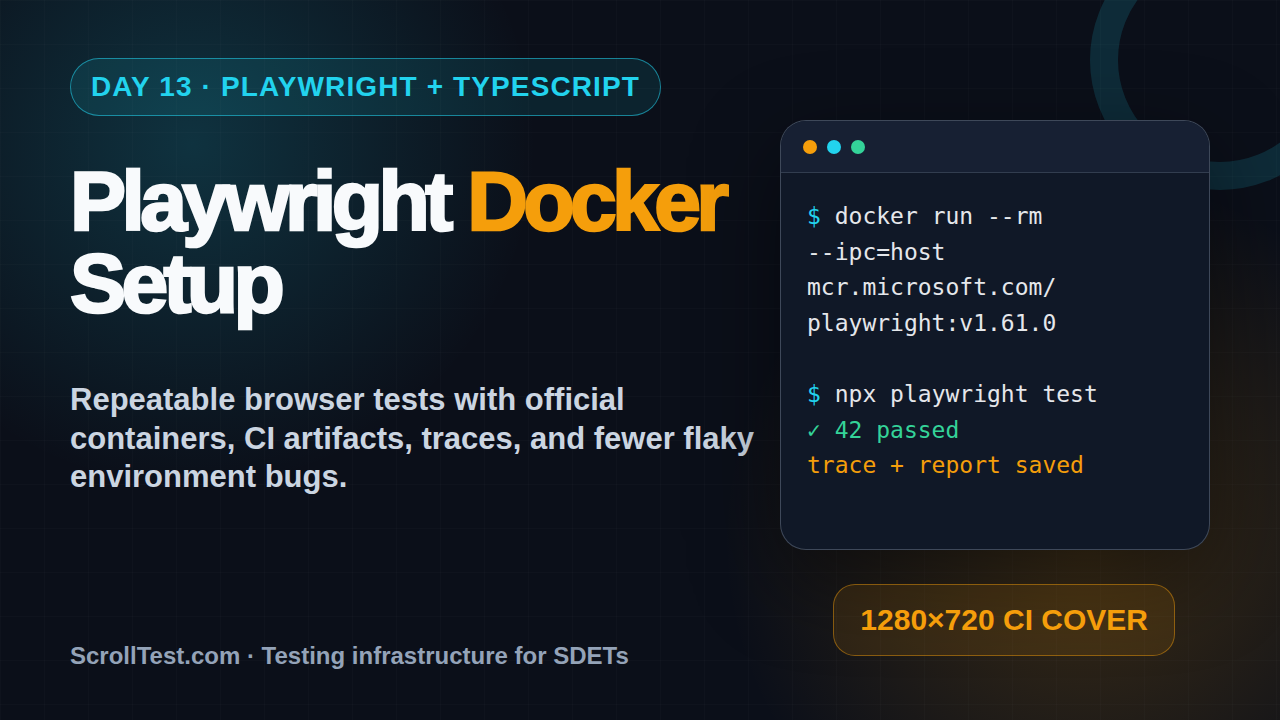
Playwright Docker is where your local test suite becomes a repeatable CI asset. Day 13 of this Playwright + TypeScript series shows how I package tests inside the official Microsoft Playwright image, run them with stable browser dependencies, and avoid the container mistakes that create flaky builds.
🎭 Want to master this with real projects? Join the Playwright Automation Mastery course at The Testing Academy.
Table of Contents
- Why Playwright Docker matters
- Use the official Playwright Docker image
- Project setup for container runs
- Build a practical Dockerfile
- Run app and tests with Docker Compose
- Use Playwright Docker in CI
- Debugging reports, traces, and screenshots
- Common Playwright Docker pitfalls
- Key takeaways
- FAQ
Contents
Why Playwright Docker matters
If Day 12 was about running Playwright in GitHub Actions, Day 13 is about removing the classic excuse: “It works on my machine.” A browser test suite has more moving parts than a normal unit test suite. It needs Node, npm packages, browser binaries, Linux libraries, fonts, certificates, network access, and enough shared memory for Chromium.
That is exactly why Playwright Docker matters. The official Playwright documentation says its Docker image includes Playwright browsers and browser system dependencies, while the Playwright package itself should still be installed separately in your project. That distinction is important. The image gives you the operating system layer. Your repository gives you the test runner and application code.
What problem Docker actually solves
I see teams use Docker as a magic wrapper. That does not work. Docker does not fix weak locators, slow pages, bad test data, or missing assertions. Docker fixes environment drift. It makes the same browser dependency stack run on a MacBook, a Linux laptop, GitHub Actions, GitLab, Jenkins, or a self-hosted runner.
For Playwright TypeScript projects, the practical benefits are clear:
- Same Linux browser dependencies across local and CI runs.
- Cleaner visual regression baselines because screenshots come from the same environment.
- Faster onboarding for new SDETs because they run one Docker command.
- Less time spent debugging missing packages such as fonts and browser libraries.
- Predictable CI behavior when the runner image changes underneath you.
Playwright is large enough now that this matters at scale. During this run, the GitHub API showed microsoft/playwright at 91,314 stars. The npm downloads API reported 163,130,561 downloads for @playwright/test in the last-month window from 2026-05-21 to 2026-06-19. When a tool has that level of adoption, the difference between a hobby setup and a production setup is not syntax. It is repeatability.
Screenshot description
Screenshot to capture: Terminal showing docker run --rm executing npx playwright test, with a green summary at the end and the mounted playwright-report folder visible in the project tree.
Use the official Playwright Docker image
The official Playwright Docker docs currently show the image format mcr.microsoft.com/playwright:v1.61.0-noble. The version should match the Playwright version you install in your project. The operating system tag matters too. In the example, noble refers to the Ubuntu base image family.
Start with a direct pull:
docker pull mcr.microsoft.com/playwright:v1.61.0-nobleThen run an interactive shell:
docker run -it --rm --ipc=host \
  mcr.microsoft.com/playwright:v1.61.0-noble \
  /bin/bash
Why --ipc=host is not optional noise
Playwright’s Docker documentation recommends --ipc=host when using Chromium. Without enough shared memory, Chromium can crash in strange ways. The failure often looks like a random browser launch error, not a memory problem. That is why I treat --ipc=host as a default for local container runs.
The same docs also recommend --init to avoid PID 1 process handling issues and zombie processes. Use it when you run longer-lived containers or Playwright server containers.
docker run --rm --init --ipc=host \
  -v "$PWD:/work" \
  -w /work \
  mcr.microsoft.com/playwright:v1.61.0-noble \
  npm test
Root user versus pwuser
By default, the official Docker image runs browsers as root. Playwright’s docs are honest about the trade-off: root disables the Chromium sandbox. For trusted end-to-end tests against your own app, many teams accept that. For scraping, crawling, or visiting untrusted websites, the docs recommend a separate user with a seccomp profile.
For a normal QA automation project, I use this rule:
- Trusted internal test environment: root is acceptable for simplicity.
- Public or untrusted targets: run as
pwuserwith the recommended security options. - Security-sensitive enterprise setup: ask DevSecOps to review the container profile instead of copying random flags from a blog.
Example with pwuser:
docker run -it --rm --ipc=host \
  --user pwuser \
  --security-opt seccomp=seccomp_profile.json \
  mcr.microsoft.com/playwright:v1.61.0-noble \
  /bin/bash
This is not about looking advanced. It is about knowing when the browser sandbox matters.
Project setup for container runs
Before writing a Dockerfile, make the Playwright TypeScript project container-friendly. The fastest way to create CI pain is to hard-code local paths, assume a browser is already installed, or depend on a developer’s global Node installation.
Use package scripts
Your package.json should expose simple scripts that Docker and CI can call without special knowledge.
{
  "scripts": {
    "test": "playwright test",
    "test:headed": "playwright test --headed",
    "test:report": "playwright show-report --host 0.0.0.0",
    "test:smoke": "playwright test --grep @smoke"
  },
  "devDependencies": {
    "@playwright/test": "1.61.0",
    "typescript": "^5.0.0"
  }
}
Notice the fixed Playwright version. If your Docker image says v1.61.0 but your package pulls a newer test runner, you create a quiet mismatch. It may work for weeks. Then a browser protocol change, screenshot baseline change, or dependency update breaks the suite when nobody expects it.
Keep Playwright config CI-aware
In Day 12 on Playwright CI with GitHub Actions, I used a CI-aware config. Keep that pattern when Docker enters the setup.
import { defineConfig, devices } from '@playwright/test';

export default defineConfig({
  testDir: './tests',
  timeout: 30_000,
  expect: {
    timeout: 5_000
  },
  fullyParallel: true,
  forbidOnly: !!process.env.CI,
  retries: process.env.CI ? 2 : 0,
  workers: process.env.CI ? 1 : undefined,
  reporter: [
    ['list'],
    ['html', { outputFolder: 'playwright-report', open: 'never' }]
  ],
  use: {
    baseURL: process.env.BASE_URL || 'http://host.docker.internal:3000',
    trace: 'on-first-retry',
    screenshot: 'only-on-failure',
    video: 'retain-on-failure'
  },
  projects: [
    { name: 'chromium', use: { ...devices['Desktop Chrome'] } },
    { name: 'firefox', use: { ...devices['Desktop Firefox'] } }
  ]
});
The important line is baseURL. Inside a container, localhost usually means the container itself, not the app running on your laptop. That one misunderstanding causes a painful number of “connection refused” failures.
Use environment variables explicitly
Do not hide environment assumptions inside helper files. A Docker run should show what it needs.
docker run --rm --ipc=host \
  -e CI=true \
  -e BASE_URL=http://host.docker.internal:3000 \
  -v "$PWD:/work" \
  -w /work \
  mcr.microsoft.com/playwright:v1.61.0-noble \
  bash -lc "npm ci && npm test"
On Linux, host.docker.internal may need an extra host mapping. Use this form:
docker run --rm --ipc=host \
  --add-host=host.docker.internal:host-gateway \
  -e BASE_URL=http://host.docker.internal:3000 \
  -v "$PWD:/work" \
  -w /work \
  mcr.microsoft.com/playwright:v1.61.0-noble \
  bash -lc "npm ci && npx playwright test"
Build a practical Dockerfile
For local experiments, a long docker run command is fine. For a team, create a Dockerfile. The goal is not to build the smallest possible image on day one. The goal is a boring image that every tester can run.
Basic Dockerfile for Playwright tests
FROM mcr.microsoft.com/playwright:v1.61.0-noble

WORKDIR /app

COPY package*.json ./
RUN npm ci

COPY playwright.config.ts ./
COPY tests ./tests
COPY pages ./pages

ENV CI=true

CMD ["npx", "playwright", "test"]
Build it:
docker build -t scrolltest-playwright-day13 .Run it:
docker run --rm --ipc=host \
  -e BASE_URL=https://example.com \
  -v "$PWD/playwright-report:/app/playwright-report" \
  scrolltest-playwright-day13
Why I copy package files first
The Dockerfile copies package*.json before the test files so Docker can cache npm ci. If only test code changes, the dependency layer remains cached. This saves time in local builds and in CI systems that support Docker layer caching.
For a real team, I also add .dockerignore:
node_modules
playwright-report
test-results
.git
.env
.DS_Store
coverage
Never send node_modules into the Docker build context. It slows builds and creates platform-specific weirdness. Mac-installed native packages do not belong in a Linux container.
Multi-stage is optional here
For application containers, multi-stage builds are often necessary. For a Playwright test runner image, I keep it simple at first. If the image becomes too large or your CI bill complains, optimize later. Stability beats cleverness in a test infrastructure tutorial.
Run app and tests with Docker Compose
Most E2E tests need a target application. Running tests against a deployed staging URL is common, but local Docker Compose is powerful for pull requests and isolated integration checks.
Compose file with app and tests
services:
  web:
    build:
      context: .
      dockerfile: Dockerfile.app
    ports:
      - "3000:3000"
    environment:
      NODE_ENV: test

  e2e:
    build:
      context: .
      dockerfile: Dockerfile.playwright
    depends_on:
      - web
    environment:
      CI: "true"
      BASE_URL: http://web:3000
    volumes:
      - ./playwright-report:/app/playwright-report
      - ./test-results:/app/test-results
    ipc: host
Run the suite:
docker compose up --build --exit-code-from e2eThe key value is BASE_URL: http://web:3000. In Docker Compose, services can reach each other by service name. The test container should not call localhost:3000 because that points back to the test container, not the web service.
Wait for the app, not just the container
depends_on starts containers in order. It does not guarantee your app is ready to serve traffic. Handle readiness in one of these ways:
- Use Playwright’s
webServeroption when the app starts from the test process. - Add a healthcheck to the app service and wait for healthy status.
- Use a small wait script that polls
/healthbefore running tests.
Example wait script:
async function waitForHealth(url: string, retries = 30) {
  for (let i = 1; i <= retries; i++) {
    try {
      const response = await fetch(url);
      if (response.ok) return;
    } catch {
      // App is not ready yet.
    }
    await new Promise(resolve => setTimeout(resolve, 1000));
  }
  throw new Error(`App did not become healthy: ${url}`);
}

await waitForHealth(`${process.env.BASE_URL}/health`);
This is the kind of small infrastructure code that separates a stable SDET setup from a fragile demo.
🚀 Level Up Your Playwright
From locators to CI pipelines — build a production-grade Playwright + TypeScript framework step by step.
Use Playwright Docker in CI
Playwright’s CI documentation says there are three basic steps for CI: ensure the agent can run browsers, install packages with npm ci, then run npx playwright test. It also shows container-based GitHub Actions using jobs.<job_id>.container with the official image. That is the clean path when you want visual consistency and fewer host dependency surprises.
GitHub Actions job with container
name: Playwright Docker Tests

on:
  push:
    branches: [ main, master ]
  pull_request:
    branches: [ main, master ]

jobs:
  e2e:
    runs-on: ubuntu-latest
    container:
      image: mcr.microsoft.com/playwright:v1.61.0-noble
      options: --user 1001
    timeout-minutes: 60

    steps:
      - uses: actions/checkout@v5

      - uses: actions/setup-node@v6
        with:
          node-version: lts/*

      - name: Install dependencies
        run: npm ci

      - name: Run Playwright tests
        run: npx playwright test
        env:
          CI: true
          BASE_URL: ${{ secrets.STAGING_BASE_URL }}

      - name: Upload Playwright report
        uses: actions/upload-artifact@v5
        if: ${{ !cancelled() }}
        with:
          name: playwright-report
          path: playwright-report/
          retention-days: 30
Compare this with Day 7 on Trace Viewer. The report upload is not decoration. It is how your team debugs failed CI runs without rerunning the same test blindly.
When to install browsers and when not to
If you run directly on ubuntu-latest, use:
npx playwright install --with-depsIf you run inside the official Playwright image, the browser binaries and system dependencies are already included in the image. You still run npm ci because your project needs @playwright/test, TypeScript, and your test utilities.
This is the simple mental model:
- Host runner: install npm packages, browser binaries, and OS dependencies.
- Official container: install npm packages, use browsers already in the image.
- Custom image: make the Dockerfile responsible for repeatability.
India SDET interview angle
For ₹25 to ₹40 LPA SDET roles in India, Docker plus Playwright is a strong interview signal. Do not just say “I know Docker.” Explain why browser tests need shared memory, why localhost changes inside containers, and how you preserve traces and reports after a failed CI run. That is the difference between tool usage and test infrastructure thinking.
Debugging reports, traces, and screenshots
A container run should never delete the evidence. If a CI job fails and the trace is gone, the setup is incomplete.
Mount report folders locally
For local Docker runs, mount both report folders:
mkdir -p playwright-report test-results

docker run --rm --ipc=host \
  -e CI=true \
  -e BASE_URL=https://example.com \
  -v "$PWD:/work" \
  -v "$PWD/playwright-report:/work/playwright-report" \
  -v "$PWD/test-results:/work/test-results" \
  -w /work \
  mcr.microsoft.com/playwright:v1.61.0-noble \
  bash -lc "npm ci && npx playwright test"
Now the HTML report and traces survive after the container exits. Open the report:
npx playwright show-report playwright-reportTrace policy that keeps storage sane
Use traces when they help. Do not save a full trace for every passing test in every CI run unless you have a clear reason. This config is a good default:
use: {
  trace: 'on-first-retry',
  screenshot: 'only-on-failure',
  video: 'retain-on-failure'
}
It keeps routine runs lightweight while preserving enough detail for failures. If you missed the details, revisit the Playwright Trace Viewer debugging guide.
Screenshot description
Screenshot to capture: Playwright HTML report opened after a Docker run, with one failed test expanded and the trace attachment visible. Add a terminal pane showing the mounted test-results folder.
Common Playwright Docker pitfalls
Most Playwright Docker failures are not new. They are the same five mistakes repeated across teams.
Pitfall 1: Version mismatch
The image says v1.61.0, but package.json installs a different Playwright version. Pin the version or update both together.
npm install -D @playwright/test@1.61.0Pitfall 2: Calling localhost from inside the container
If your app runs on the host and your tests run in Docker, localhost points to the container. Use host.docker.internal where supported, or Docker Compose service names when both app and tests run in the same Compose network.
Chromium crashes can come from missing shared memory. Add --ipc=host for local runs, or configure the equivalent setting in your CI or Compose setup.
Pitfall 4: Reports vanish after the container exits
A container is disposable. Your test evidence should not be. Mount playwright-report and test-results, or upload them as CI artifacts.
Pitfall 5: Docker hides slow test design
If tests are slow because every case logs in through the UI, Docker will not save you. Use the authentication storage state pattern from Day 10 on Playwright authentication. Create state once, reuse it, and keep UI login coverage focused.
Key takeaways
Playwright Docker gives you a repeatable browser test environment, but only if you use it with discipline.
- Playwright Docker is mainly an environment consistency tool, not a fix for bad tests.
- Use the official image when you want browsers and Linux dependencies already installed.
- Keep the Docker image version aligned with
@playwright/test. - Use
--ipc=hostfor Chromium stability in local container runs. - Do not call
localhostblindly from inside a container. - Preserve HTML reports, traces, screenshots, and videos after every failed run.
- For CI, container jobs reduce dependency surprises and make screenshot output more consistent.
If you remember one thing from Day 13, remember this: Playwright Docker is not about making tests fancy. It is about making them boring, repeatable, and easy to debug when a release is waiting.
FAQ
Do I need Docker for every Playwright project?
No. A small learning project can run directly on your machine. Use Docker when environment drift starts costing time, when CI behaves differently from local runs, or when screenshot consistency matters.
Should I run Playwright as root in Docker?
For trusted internal end-to-end tests, the official docs say root may be fine because you trust the code running in the browser. For untrusted websites, use a separate user such as pwuser and the recommended seccomp profile.
Do I still need npx playwright install --with-deps inside the official image?
Usually no. The official image includes browsers and system dependencies. You still need npm ci because your project dependencies are not included in the image.
Why does my app fail at localhost:3000 from Docker?
Inside the test container, localhost means the test container. Use host.docker.internal for host access where supported, or use a Docker Compose service name such as http://web:3000.
What should Day 14 cover next?
After Docker, the natural next step is parallel execution and sharding strategy. Docker gives you a stable environment. Sharding teaches you how to split a growing suite without creating chaos.
Sources: Playwright Docker documentation, Playwright CI documentation, microsoft/playwright GitHub repository, and the npm downloads API for @playwright/test.
🎓 Master Playwright End to End
Join hundreds of SDETs building real automation frameworks. Lifetime access, hands-on projects, and a job-ready portfolio.

