
Trace Review Template for AI Browser Runs
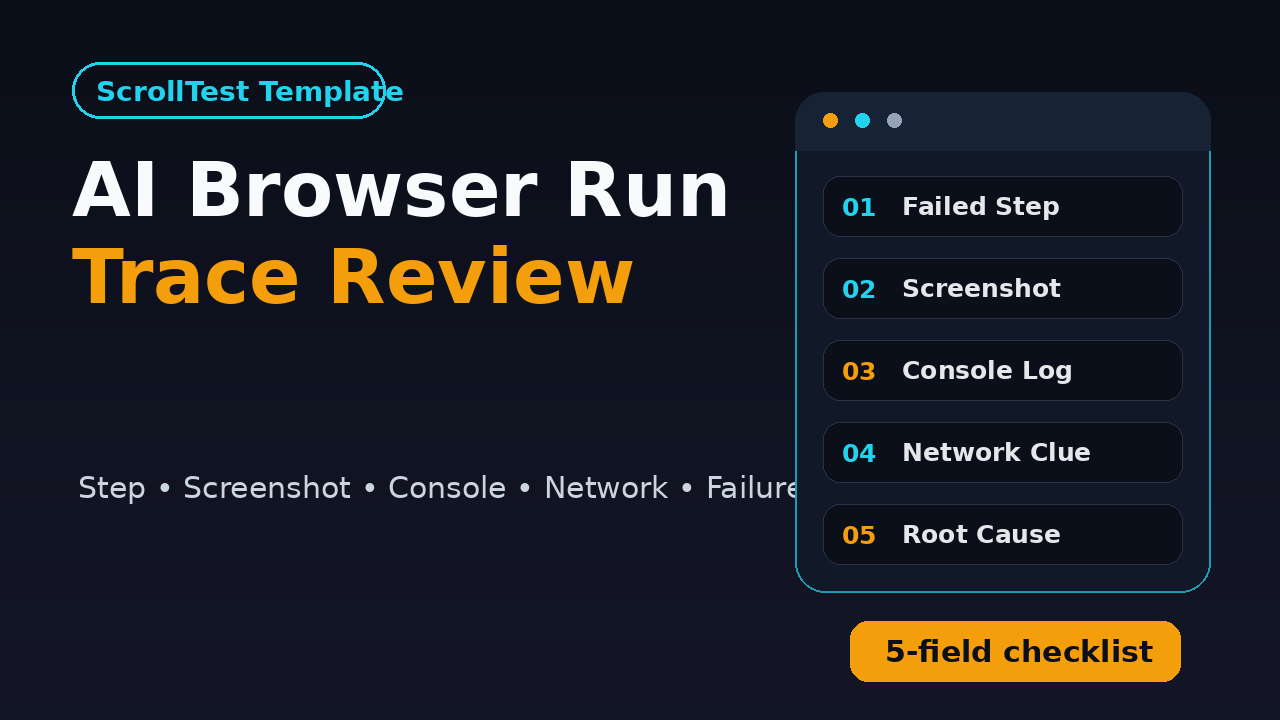
I see teams get excited when an AI browser run clicks through a flow, then waste 30 minutes arguing about why it failed. A trace review template for AI browser runs fixes that gap by forcing every failure report to include the same evidence: step, screenshot, console log, network clue, and failure reason.
🤖 Learning AI-powered testing? Go hands-on with LLM, RAG, and AI-agent testing in the AI-Powered Testing Mastery course at The Testing Academy.
That matters because AI browser automation is no longer a toy demo. Tools like BrowsingBee turn a web app flow into a reusable skill for an AI agent, while Playwright already gives testers trace files, screenshots, DOM snapshots, network panels, and console output. The missing piece is not more data. The missing piece is a review template that makes the data usable.
Table of Contents
- Why AI Browser Runs Need a Trace Review Template
- What the Trace Review Template Captures
- How to Use It With BrowsingBee AI Browser Runs
- Playwright Trace Evidence That Actually Helps
- Copy-Paste Trace Review Template
- Automation Example: Attach Evidence in TypeScript
- Review Rules for QA Teams
- India QA Team Context
- Key Takeaways
- FAQ
Contents
Why AI Browser Runs Need a Trace Review Template
AI browser agents are good at doing the boring part: open the page, fill the field, click the button, read the result, and repeat. The review problem starts after the run. A failure report often says, “AI failed on login” or “agent could not complete checkout.” That is not a bug report. That is a complaint.
A strong trace review template for AI browser runs turns that complaint into evidence. It gives the QA engineer, developer, product manager, or founder the same five facts every time. What step failed? What did the screen show? What did the browser console say? Which network call looked wrong? What is the most likely failure reason?
AI runs fail differently from normal scripts
A normal Playwright test fails at a specific assertion or locator. An AI browser run can fail because the agent misunderstood an instruction, the app rendered a new variant, the selector changed, the backend returned stale data, a modal blocked the screen, or the run hit a rate limit.
That wider failure surface is exactly why “passed” and “failed” are too thin. I want a short review that separates app defects from agent behavior. Without that split, teams start fixing the wrong thing.
Trace files already contain the raw material
The official Playwright Trace Viewer documentation says traces help debug tests when they fail on CI and can be opened locally or in the browser at trace.playwright.dev. It exposes the timeline, actions, screenshots, DOM snapshots, console messages, and network activity. Source: Playwright Trace Viewer docs.
GitHub Actions also documents workflow logs as the place to inspect each job and step when a CI run fails. Source: GitHub Actions workflow logs. That means the evidence is usually present. The problem is that humans do not always extract it consistently.
The template reduces review time
I use a template because it makes triage boring. Boring is good. A reviewer should not reinvent the checklist for every run. If every AI browser failure has the same shape, a senior SDET can scan ten reports quickly and decide which ones need a code fix, which ones need a prompt fix, and which ones are environment noise.
- Developers get the failing step and network clue.
- QA gets the screenshot, trace, and reproduction path.
- Product gets the user impact in plain English.
- Agent builders get the instruction or planning failure.
What the Trace Review Template Captures
The template has five required fields. Do not make this a 40-field incident form. Long forms die after one sprint. The goal is a compact record that a tester can complete in two to five minutes after opening the trace.
1. Step
The step is the smallest meaningful action where the run went wrong. Good step descriptions sound like this: “Click Continue after entering OTP,” “Extract invoice total from payment page,” or “Submit profile form after uploading PAN card.”
Bad step descriptions are vague: “checkout failed,” “login issue,” or “AI got stuck.” Those lines force the reviewer to replay the whole run. A template should punish vague language by asking for the exact action.
2. Screenshot
The screenshot is the fastest way to see the mismatch between expected state and actual state. I want one screenshot at the failing moment and, if needed, one screenshot from the previous successful state.
For example, if an AI agent says it clicked a submit button, the screenshot may show that a cookie banner covered the button. That is not a selector bug. It is a state handling problem. The fix could be a precondition, an agent instruction, or a common “dismiss overlays” helper.
3. Console log
Console logs catch client-side failures that screenshots hide. A blank page screenshot tells me the page is blank. A console log with TypeError: Cannot read properties of undefined tells me the frontend crashed.
Selenium also documents browser logging as a troubleshooting signal for WebDriver sessions. Source: Selenium logging docs. Playwright teams should treat console capture as a default attachment, not an optional extra.
4. Network clue
The network clue is not a full HAR analysis. It is the one request that explains the failure. Look for these patterns:
- 401 or 403 on an authenticated endpoint
- 404 for a missing resource or route
- 429 from rate limiting
- 500 from a backend crash
- GraphQL response with an
errorsarray - Long pending request that blocks UI state
OpenTelemetry defines traces as signals that describe how requests move through a system. Source: OpenTelemetry trace concepts. Browser traces are smaller in scope, but the same thinking applies: link the visible failure to the request path.
5. Failure reason
The failure reason is your current best guess. It does not need to be perfect. It must be useful. Pick one:
- Application bug: the product did the wrong thing.
- Test data issue: the account, fixture, or input was bad.
- Agent instruction issue: the prompt or task wording was ambiguous.
- Selector or locator issue: the target changed or was unstable.
- Environment issue: CI, browser, network, or service dependency failed.
- Expected product change: the app changed and the skill needs an update.
This one field prevents the classic Slack thread where five people argue with five different mental models.
How to Use It With BrowsingBee AI Browser Runs
BrowsingBee positions a web workflow as a skill that an AI agent can run through a CLI. The homepage describes the core flow as creating a skill, defining steps like navigate, fill, click, and extract, running it via CLI, and getting structured output. Source: BrowsingBee.
That product shape is important for QA teams. A BrowsingBee run is not only a browser session. It is a reusable workflow artifact. If the review process is weak, bad skills keep failing in slightly different ways. If the review process is tight, every failed run improves the skill.
Put the template next to the run output
Do not bury the trace review in a random Google Doc. Put the template next to the run result, issue, or PR comment. The best place depends on your team:
- For solo founders: paste it into the GitHub issue.
- For QA teams: attach it to the test management defect.
- For product teams: add it to the release blocker note.
- For agent teams: store it with the skill version and run ID.
Review the failed run before editing the prompt
This is the most common trap I see: the AI run fails, and someone immediately rewrites the prompt. Slow down. First review the trace. If the backend returned 500, the prompt is innocent. If the DOM changed, the skill may need a better target. If the screenshot shows a new modal, the flow needs a state handler.
Prompt changes without trace review create a worse problem. They hide product defects under more instructions. Your AI browser stack becomes a pile of defensive wording instead of a clean automation system.
Keep one failure reason per report
A single AI browser run can expose multiple issues. Still, each report should have one primary failure reason. If the checkout API returned 500 and the agent also clicked the wrong button later, write two reports or mark one as secondary.
This keeps ownership clear. Developers fix app bugs. QA fixes data and locators. Agent owners fix instructions. Release managers decide whether the failure blocks the build.
Playwright Trace Evidence That Actually Helps
Playwright traces are dense. That is useful for debugging, but it can overwhelm junior testers. I teach teams to open the trace and extract only the evidence that changes the decision.
Actions timeline
The actions timeline answers, “What did the run try to do?” In an AI browser run, the action sequence helps you spot a planning problem. Did the agent click Sign up instead of Sign in? Did it type the coupon into the search field? Did it skip the date picker?
If the action sequence is wrong, your failure reason may be “agent instruction issue” even if the app is healthy.
Before and after snapshots
The DOM snapshot answers, “What did the page look like to the automation engine?” This matters because a screenshot shows pixels, while the snapshot shows structure. A button may be visible but disabled. A label may look correct but be disconnected from the input.
For accessibility-minded teams, this also links to better locators. If your AI run struggles to select controls, check whether the app exposes clear names, roles, and labels.
Network panel
The network panel answers, “Did the browser get the data it needed?” I do not ask every tester to become a backend engineer. I do ask them to notice obvious signals: status codes, failed GraphQL operations, missing tokens, and slow requests.
When you add one network clue to the report, a developer can start from the right endpoint instead of replaying the whole flow.
Console messages
The console answers, “Did the frontend break while the AI was watching?” Capture errors and warnings that appear near the failing step. Ignore noisy logs unless they correlate with the failure.
Use the same thinking for AI agent logs. If the agent explains, “I cannot find the submit button,” include that text. It tells the reviewer whether the failure came from perception, instruction, or product state.
Copy-Paste Trace Review Template
Here is the exact template I recommend for BrowsingBee-style AI browser runs. Keep it short. Add links to trace files, screenshots, CI logs, and run artifacts where your tooling supports it.
AI Browser Run Trace Review

Run ID:
Skill / Flow:
Environment: local | staging | production-like | CI
Browser:
Build / Commit:
Reviewer:

1. Failed step
- Step number:
- Expected action:
- Actual action:
- Last successful step:

2. Screenshot evidence
- Failing screenshot:
- Previous good screenshot:
- Visible UI clue:

3. Console evidence
- Error message:
- Warning message:
- Timestamp near failure:

4. Network clue
- Endpoint or operation:
- Status code:
- Response clue:
- Slow or pending request:

5. Failure reason
Choose one:
[ ] Application bug
[ ] Test data issue
[ ] Agent instruction issue
[ ] Selector or locator issue
[ ] Environment issue
[ ] Expected product change

6. Recommended next action
- Owner:
- Fix needed:
- Retest command:
- Blocker: yes | no
How strict should reviewers be?
Be strict about the five required fields. Be flexible about everything else. A junior tester may not know the exact backend root cause. That is fine. They can still paste the failing endpoint and status code.
The rule is simple: if a developer cannot act on the report without asking for the trace link, screenshot, or failing step, the report is incomplete.
What to remove from the template
Remove fields that nobody reads. I rarely need a full browser version unless the issue is browser-specific. I rarely need a full HAR attached to every small failure. I rarely need a paragraph of emotional commentary.
Short reports survive. Long forms rot.
🚀 Build Real AI Testing Skills
Stop testing AI by guesswork. Learn DeepEval, RAG evaluation, and agent testing with guided projects.
Automation Example: Attach Evidence in TypeScript
If your AI browser run is backed by Playwright, you can collect the same evidence automatically. The example below shows the pattern. Adapt it for your runner, CI system, or BrowsingBee wrapper.
import { test, expect } from '@playwright/test';

test('checkout flow emits trace evidence on failure', async ({ page }, testInfo) => {
  const consoleErrors: string[] = [];
  const failedRequests: string[] = [];

  page.on('console', msg => {
    if (msg.type() === 'error') {
      consoleErrors.push(`${msg.text()}`);
    }
  });

  page.on('response', async response => {
    if (response.status() >= 400) {
      failedRequests.push(`${response.status()} ${response.url()}`);
    }
  });

  try {
    await page.goto(process.env.APP_URL ?? 'https://example.test');
    await page.getByRole('button', { name: 'Checkout' }).click();
    await expect(page.getByText('Payment successful')).toBeVisible();
  } catch (error) {
    const screenshot = await page.screenshot({ fullPage: true });
    await testInfo.attach('failing-screenshot', {
      body: screenshot,
      contentType: 'image/png'
    });

    await testInfo.attach('console-errors', {
      body: consoleErrors.join('\n') || 'No console errors captured',
      contentType: 'text/plain'
    });

    await testInfo.attach('failed-requests', {
      body: failedRequests.join('\n') || 'No failed requests captured',
      contentType: 'text/plain'
    });

    throw error;
  }
});
This code does not replace the human review. It removes manual collection work. The reviewer still decides whether the failure is an app bug, data issue, agent instruction problem, locator problem, environment problem, or expected product change.
Add trace capture in Playwright config
For normal Playwright suites, I usually start with trace capture on first retry. That keeps routine passing runs light while preserving evidence when the run becomes flaky.
// playwright.config.ts
import { defineConfig } from '@playwright/test';

export default defineConfig({
  use: {
    trace: 'on-first-retry',
    screenshot: 'only-on-failure',
    video: 'retain-on-failure'
  },
  retries: process.env.CI ? 1 : 0
});
If you are building AI browser skills, keep the same evidence mindset. A skill should have a run ID, trace link, screenshot, console summary, and network summary. That is the difference between a demo and a maintainable workflow.
For more Playwright reporting patterns, read Playwright Reports: HTML, JUnit and CI Guide. For flaky test triage, pair this template with Playwright Flaky Tests: Retries and Fixes.
Review Rules for QA Teams
A template helps, but process still matters. If nobody reviews the reports, the template becomes paperwork. I use these rules when a team starts adding AI browser runs to a release pipeline.
Rule 1: Every failed AI run gets a label
Use a small label set. Do not create 25 categories. Start with these labels:
ai-run:app-bugai-run:test-dataai-run:instructionai-run:locatorai-run:environmentai-run:expected-change
After two weeks, count the labels. If 60% of failures are instruction issues, improve the skill design. If most are app bugs, the AI agent is finding real product risk. If most are environment issues, fix CI before blaming the tool.
Rule 2: Never accept “AI failed” as the reason
“AI failed” is not a root cause. It is the start of an investigation. The template forces the reviewer to choose a specific reason. That small discipline changes the tone of the conversation.
Engineers stop arguing about whether AI testing is reliable and start discussing the actual evidence.
Rule 3: Keep screenshots and traces for release blockers
If a failure can block a release, keep the trace and screenshot. Do not rely on a pasted Slack message. CI logs expire, screenshots get lost, and context disappears when the person who ran the test goes offline.
A durable artifact helps managers make a decision during a release call. It also protects QA from the usual “works on my machine” loop.
Rule 4: Retest with the smallest change
When a report says the failure reason is “agent instruction issue,” change only the instruction and rerun. When it says “test data issue,” change only the fixture and rerun. If you edit prompt, data, selectors, and environment together, you learn nothing.
This is boring scientific method for QA. Change one variable. Rerun. Record the result.
India QA Team Context
In Indian QA teams, especially service teams and large enterprise delivery groups, test evidence often decides whether a defect gets respect. A vague bug from QA gets pushed back. A bug with a screenshot, console error, failed API call, and clear owner gets fixed faster.
This is even more important for SDETs aiming for product-company roles in Bengaluru, Pune, Hyderabad, Chennai, or NCR. Teams paying strong automation salaries do not only want someone who can write a script. They want someone who can debug failures, explain risk, and build reliable feedback loops.
For manual testers moving into AI testing
This template is a practical bridge. You do not need to become an LLM researcher to review AI browser runs. Start with the same QA instincts you already have:
- What did the user try to do?
- What happened instead?
- What evidence proves it?
- Who can fix it?
- How do we retest?
Add Playwright traces and AI agent logs on top of that. That is a strong first step into AI-assisted QA.
For automation leads
If you lead a team, make this part of your definition of done for AI browser skills. A skill is not ready because it passed once. It is ready when failures produce useful evidence.
That is also why I like connecting this topic with broader AI testing practices. If you are building an AI QA stack, read QA Skills Directory for AI Agents and BrowserBash Tutorial: Plain English Browser Automation. Both posts connect well with agent-style browser workflows.
Key Takeaways
A trace review template for AI browser runs makes AI testing more credible because it turns messy failures into consistent evidence. The template does not need to be complex. It needs to be used every time.
- Capture five facts: step, screenshot, console log, network clue, and failure reason.
- Use Playwright traces to inspect actions, snapshots, console messages, and network activity.
- Do not rewrite prompts before reviewing trace evidence.
- Separate app bugs from test data, locator, environment, and instruction issues.
- Attach evidence to the place where the team already works: GitHub, Jira, CI, or the run record.
My simple rule: if the next person cannot understand the failed AI browser run in 60 seconds, the report is not ready. Fix the evidence first. Then fix the product, skill, prompt, or test data.
FAQ
What is a trace review template for AI browser runs?
It is a short checklist used after an AI browser automation run fails. It records the failed step, screenshot, console log, network clue, and likely failure reason so the team can triage the issue quickly.
Is this only for BrowsingBee?
No. The template fits BrowsingBee-style skills, Playwright AI agents, Selenium browser agents, and internal browser automation tools. BrowsingBee is a strong example because it turns web workflows into reusable AI skills.
Do I need Playwright traces for every run?
Not always. For high-volume suites, trace on first retry or failure is usually enough. For new AI browser skills, capture more evidence until the flow becomes stable.
What is the biggest mistake teams make with AI browser failures?
They blame the AI before checking the evidence. Many failures come from app bugs, bad test data, changed UI states, or backend errors. The trace review template forces the team to check those facts first.
Can manual testers use this template?
Yes. Manual testers already know how to describe steps, expected results, actual results, and evidence. This template adds browser trace signals like console errors and network clues, which makes the report stronger for automation and AI testing work.
🎓 Become an AI-Powered QA Engineer
Join hundreds of SDETs mastering LLM, RAG, and agent testing. Lifetime access, hands-on labs, and a job-ready portfolio.

