Playwright Multi-User Testing with TypeScript
Most end-to-end suites test one logged-in user and call it coverage. Playwright multi-user testing is where the real product risk shows up: admin approvals, maker-checker workflows, chat between two accounts, RBAC boundaries, and stale session bugs that single-user tests never catch.
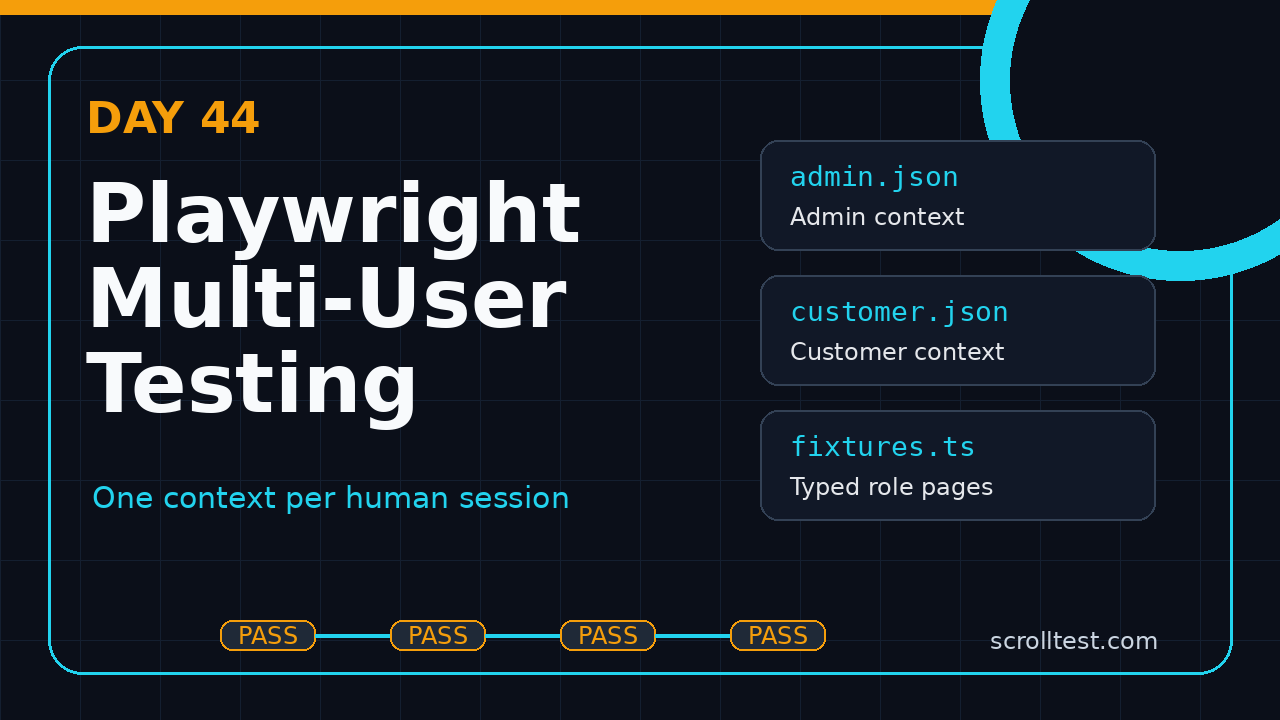
Day 44 of this Playwright + TypeScript series is a practical build. I will show the exact pattern I use for role-based storage states, isolated browser contexts, typed fixtures, and two-user flows that remain stable in CI.
Table of Contents
- Why Playwright multi-user testing matters
- The mental model: one context per human
- Folder setup for role-based tests
- Create authentication state for each role
- Build typed fixtures for admin and customer pages
- Real multi-user approval flow in TypeScript
- Debugging, traces, and screenshots
- Common pitfalls I see in teams
- CI checklist for Playwright multi-user testing
- Key takeaways
Contents
Why Playwright multi-user testing matters
Single-user tests are useful, but many serious business bugs are multi-user bugs. I see this most in fintech, ecommerce, B2B SaaS, HR tools, education platforms, and internal admin portals. One user creates something. Another user must review it. A third user should not see it. A background job may change the status after both users act.
If your suite logs in as one super-admin for every scenario, you are skipping the product boundary that customers actually pay for. Role-based workflows are not edge cases. They are the workflow.
What changes when two users are active?
With two users, your test must track separate cookies, local storage, session storage, permissions, feature flags, and UI state. You also need to think about race conditions. The admin page may not update instantly after the customer submits a request. The customer may need to refresh or poll until the approval appears.
Playwright gives us strong primitives for this. The official browser context documentation explains that tests run in isolated clean-slate environments called browser contexts. That isolation is the foundation of multi-user testing because each context behaves like a separate browser profile.
Good examples for QA teams
- Customer submits a refund request and support approves it.
- Maker creates a bank transfer and checker authorizes it.
- Teacher publishes an assignment and student sees it.
- Seller updates inventory and buyer sees stock change.
- Admin changes a role and the user loses access after reload.
- Agent sends a chat message and customer receives it.
These scenarios need more than selectors. They need a deliberate session model. If you are still building your fundamentals, revisit the ScrollTest guides on role-based access control testing in Playwright and merging multiple Playwright fixtures. This article builds on those patterns.
The mental model: one context per human
Here is the rule I teach my team: one browser context equals one human session. Do not open two tabs in the same context and pretend they are different users. They will share cookies and storage. That creates false confidence.
Use separate contexts when the users must have different identities. Use separate pages inside a context when the same user opens multiple tabs. That one distinction removes a lot of flaky test behavior.
Context, page, and storage state
A Playwright page is a tab. A browser context is an isolated browser profile. A storageState file is a saved snapshot of cookies and local storage that can be reused for login. The official Playwright authentication guide recommends storing authenticated browser state on the file system, while being careful not to commit sensitive state files.
For multi-user testing, this gives us a clean pattern:
- Create one storage state file per role.
- Start a separate context for each role in the test.
- Create one page from each context.
- Keep test data unique so users do not collide.
- Close every context after the test.
Do not overuse UI login
Logging in through the UI before every test is slow and noisy. Playwright’s npm package is widely used, with the npm downloads API reporting 207,260,535 downloads for @playwright/test in the last month at the time of this cron run. Teams use it at scale because the framework supports fast setup patterns like stored auth state, API requests, and isolated contexts.
Use one setup project to create authenticated state. Then use that state in normal tests. Your role tests become faster, clearer, and easier to debug.
Folder setup for role-based tests
I keep role-based artifacts separate from normal page objects. That makes it obvious which files are test fixtures, which files are auth states, and which files are user-facing flows.
playwright-multi-user/
  playwright.config.ts
  tests/
    auth.setup.ts
    approvals.spec.ts
  tests/fixtures/
    role-fixtures.ts
  tests/pages/
    CustomerDashboard.ts
    AdminDashboard.ts
  tests/utils/
    test-data.ts
  playwright/.auth/
    admin.json
    customer.json
The playwright/.auth folder should be ignored by Git. It can contain cookies or tokens. Treat it like a secret, even if the environment is only QA.
# .gitignore
playwright/.auth/
test-results/
playwright-report/
.env
Install the basic packages
If you are starting fresh, use the standard Playwright install. The latest npm metadata API returned version 1.62.1 for @playwright/test during this run, so check your local version and keep your project pinned through package-lock.json.
npm init playwright@latest
npx playwright --version
npm run test -- --list
For India-based SDET teams in TCS, Infosys, Wipro, Cognizant, and product companies, this structure also helps in interviews. Hiring managers often ask how you handle different roles in the same end-to-end test. A clean fixture answer sounds far stronger than “I log in twice manually.”
Create authentication state for each role
Start with a setup file that logs in once per role and stores the state. Replace selectors and URLs with your actual application values. I prefer environment variables for usernames and passwords because CI can inject them securely.
// tests/auth.setup.ts
import { test as setup, expect } from '@playwright/test';

const adminFile = 'playwright/.auth/admin.json';
const customerFile = 'playwright/.auth/customer.json';

async function login(page, email: string, password: string) {
  await page.goto('/login');
  await page.getByLabel('Email').fill(email);
  await page.getByLabel('Password').fill(password);
  await page.getByRole('button', { name: 'Sign in' }).click();
  await expect(page.getByTestId('app-shell')).toBeVisible();
}

setup('authenticate admin', async ({ page }) => {
  await login(page, process.env.ADMIN_EMAIL!, process.env.ADMIN_PASSWORD!);
  await page.context().storageState({ path: adminFile });
});

setup('authenticate customer', async ({ page }) => {
  await login(page, process.env.CUSTOMER_EMAIL!, process.env.CUSTOMER_PASSWORD!);
  await page.context().storageState({ path: customerFile });
});
Wire the setup project in config
Playwright projects are a clean way to express dependencies between setup and tests. The projects documentation describes how to configure multiple projects and dependencies. Here, the chromium project depends on setup.
// playwright.config.ts
import { defineConfig, devices } from '@playwright/test';

export default defineConfig({
  testDir: './tests',
  retries: process.env.CI ? 2 : 0,
  reporter: [['html'], ['list']],
  use: {
    baseURL: process.env.BASE_URL || 'https://qa.example.com',
    trace: 'on-first-retry',
    screenshot: 'only-on-failure',
  },
  projects: [
    { name: 'setup', testMatch: /.*\.setup\.ts/ },
    {
      name: 'chromium',
      use: { ...devices['Desktop Chrome'] },
      dependencies: ['setup'],
    },
  ],
});
Screenshot description: after the setup project runs, the HTML report should show two green setup tests before the real specs. If one setup step fails, the dependent project should not run with half-created session files.
Build typed fixtures for admin and customer pages
Now create a fixture that provides two authenticated pages: adminPage and customerPage. This is the point where many teams make the test readable. Instead of twenty lines of context setup inside every spec, the spec asks for the role it needs.
// tests/fixtures/role-fixtures.ts
import { test as base, Page } from '@playwright/test';

type RoleFixtures = {
  adminPage: Page;
  customerPage: Page;
};

export const test = base.extend<RoleFixtures>({
  adminPage: async ({ browser }, use) => {
    const context = await browser.newContext({
      storageState: 'playwright/.auth/admin.json',
    });
    const page = await context.newPage();
    await use(page);
    await context.close();
  },

  customerPage: async ({ browser }, use) => {
    const context = await browser.newContext({
      storageState: 'playwright/.auth/customer.json',
    });
    const page = await context.newPage();
    await use(page);
    await context.close();
  },
});

export { expect } from '@playwright/test';
Why this fixture is safer
Each role gets its own context. The test cannot accidentally share cookies between admin and customer. Cleanup is centralized. If a test fails, Playwright still closes the context after fixture teardown.
Fixtures are also easier to extend. Later you can add sellerPage, supportPage, or readonlyAuditorPage without rewriting every test. If your team is new to this, the official fixtures documentation is worth reading before you build a large framework.
Real multi-user approval flow in TypeScript
Let us test a simple approval flow. A customer creates a refund request. The admin approves it. The customer sees the approved state. This pattern applies to purchase orders, loan requests, timesheets, access requests, and many enterprise workflows.
// tests/utils/test-data.ts
export function uniqueRefundReason() {
  return `refund-${Date.now()}-${Math.random().toString(16).slice(2)}`;
}
// tests/approvals.spec.ts
import { test, expect } from './fixtures/role-fixtures';
import { uniqueRefundReason } from './utils/test-data';

test('customer refund request can be approved by admin', async ({
  customerPage,
  adminPage,
}) => {
  const reason = uniqueRefundReason();

  await customerPage.goto('/refunds/new');
  await customerPage.getByLabel('Order ID').fill('ORD-1001');
  await customerPage.getByLabel('Reason').fill(reason);
  await customerPage.getByRole('button', { name: 'Submit request' }).click();
  await expect(customerPage.getByText('Refund request submitted')).toBeVisible();

  await adminPage.goto('/admin/refunds');
  await adminPage.getByRole('searchbox', { name: 'Search refunds' }).fill(reason);
  await adminPage.getByRole('row', { name: new RegExp(reason) })
    .getByRole('button', { name: 'Approve' })
    .click();
  await expect(adminPage.getByText('Refund approved')).toBeVisible();

  await customerPage.goto('/refunds');
  await expect(customerPage.getByRole('row', { name: new RegExp(reason) }))
    .toContainText('Approved');
});
Add polling when data is eventually consistent
Many modern apps use queues. The admin approval may not appear on the customer page immediately. Do not add a hard wait like waitForTimeout(10000). Use an assertion that retries until the UI reaches the expected state.
await expect(async () => {
  await customerPage.reload();
  await expect(
    customerPage.getByRole('row', { name: new RegExp(reason) })
  ).toContainText('Approved');
}).toPass({ timeout: 30_000, intervals: [1000, 2000, 5000] });
This style documents the product behavior. The system is allowed to take up to 30 seconds, but the test does not sleep for 30 seconds when the update arrives in 2 seconds.
Use API setup for faster data creation
UI is not always the best way to create data. Playwright includes API testing support through APIRequestContext. The official API testing guide covers how to send requests directly from tests. I often create records through API and reserve UI actions for the behavior under test.
test('admin can approve API-created request', async ({ request, adminPage, customerPage }) => {
  const reason = uniqueRefundReason();

  const response = await request.post('/api/refunds', {
    data: { orderId: 'ORD-1002', reason },
  });
  expect(response.ok()).toBeTruthy();

  await adminPage.goto('/admin/refunds');
  await adminPage.getByRole('searchbox').fill(reason);
  await adminPage.getByRole('button', { name: 'Approve' }).click();

  await customerPage.goto('/refunds');
  await expect(customerPage.getByText(reason)).toBeVisible();
  await expect(customerPage.getByText('Approved')).toBeVisible();
});
Debugging, traces, and screenshots
Multi-user tests fail in confusing ways if you do not capture the right evidence. One user may be on the correct page while the other user is stale. The trace should show both timelines clearly.
If a test fails on retry, open the Playwright trace and inspect both pages. The ScrollTest Playwright Trace Viewer debugging guide is a good companion here because multi-user traces are exactly where the viewer becomes valuable.
Attach role-specific screenshots
When I debug role-based failures, I attach screenshots with role names. A screenshot named failure.png is not enough when two pages are active.
test.afterEach(async ({}, testInfo) => {
  // Keep global afterEach small. Prefer role-specific helpers in complex suites.
});

async function attachRoleScreenshot(testInfo, role: string, page) {
  const screenshot = await page.screenshot({ fullPage: true });
  await testInfo.attach(`${role}-page`, {
    body: screenshot,
    contentType: 'image/png',
  });
}
Screenshot description: the HTML report should show separate attachments for admin-page and customer-page. When a CI failure arrives on Slack, the reviewer should know which role saw the wrong state without replaying the whole test first.
Record useful network calls
For approval flows, I also watch network calls. If the UI shows “Approved” but the API response still says “Pending,” the bug is not in the selector. It is a stale cache, wrong endpoint, or frontend state issue.
const approvalResponse = adminPage.waitForResponse(resp =>
  resp.url().includes('/api/refunds') &&
  resp.request().method() === 'PATCH' &&
  resp.status() === 200
);

await adminPage.getByRole('button', { name: 'Approve' }).click();
await approvalResponse;
Common pitfalls I see in teams
Most Playwright multi-user testing problems come from test design, not Playwright. The framework gives you isolation. Your suite must not break that isolation.
If ten workers use the same admin and mutate the same data, expect flakes. Either create independent data per test or run destructive role tests serially. Better yet, allocate users per worker. Use testInfo.workerIndex to pick a unique account from a pool.
const adminUsers = [
  'admin-worker-0@example.com',
  'admin-worker-1@example.com',
  'admin-worker-2@example.com',
];

function adminForWorker(workerIndex: number) {
  return adminUsers[workerIndex % adminUsers.length];
}
Pitfall 2: checking text without checking ownership
A bad assertion says: “Approved is visible.” A better assertion says: “The row for this unique request contains Approved.” Multi-user flows often create many similar records. Always anchor the assertion to the data your test created.
Pitfall 3: forgetting negative role checks
Do not only prove that admin can approve. Prove that customer cannot approve. Prove that a read-only auditor can see but not edit. RBAC tests are where automation delivers serious value to the business.
await customerPage.goto('/admin/refunds');
await expect(customerPage.getByText('Access denied')).toBeVisible();
await expect(customerPage.getByRole('button', { name: 'Approve' })).toHaveCount(0);
CI checklist for Playwright multi-user testing
Before you add this to CI, decide how accounts and data are managed. Many teams skip this and then blame Playwright when the suite becomes flaky. The fix is process discipline.
My CI checklist
- Use separate test users for each role and worker.
- Never commit storage state files.
- Regenerate auth state inside CI.
- Tag multi-user tests so they can run separately.
- Use unique test data for every run.
- Clean up records through API where possible.
- Keep traces on first retry, not every run.
- Fail fast when setup authentication fails.
# Run only role-based tests
npx playwright test --grep @multi-user

# Run with HTML report in CI
npx playwright test --project=chromium --reporter=html
For product-company interviews in Bengaluru, Pune, Hyderabad, and remote SDET roles, this is also a strong portfolio project. A tester who can explain contexts, auth states, role fixtures, API setup, and CI account isolation is already thinking beyond record-and-playback automation.
Key takeaways
Playwright multi-user testing is not a fancy add-on. It is the right way to test products where more than one role touches the same workflow.
- Use one browser context per human session.
- Store auth state per role, and keep those files out of Git.
- Move admin and customer pages into typed fixtures.
- Use unique test data and role-specific screenshots.
- Assert ownership, permissions, and final state, not just visible text.
The next step is simple: take one approval flow from your current application and rewrite it with two contexts. Do not start with your hardest scenario. Start with one customer and one admin, make it stable locally, then add CI and worker-safe test data.
FAQ
Can I use two pages in the same context for two users?
No. Two pages in the same context share the same cookies and storage. Use two contexts when the identities are different.
Should every test use stored authentication state?
No. Keep a few UI login tests to validate login itself. Use stored state for business flows where login is not the feature under test.
How many roles should I automate first?
Start with two roles that create business risk, such as customer and admin or maker and checker. Add more roles only after the first flow is stable in CI.
What should I show in a portfolio project?
Show the folder structure, auth setup, typed fixtures, one role-based flow, one negative permission test, and an HTML report with trace or screenshots. That is enough to show real SDET thinking.
Sources checked for this tutorial: Playwright authentication, browser contexts, fixtures, projects, API testing documentation, npm package metadata for @playwright/test, and the Microsoft Playwright GitHub repository.