Playwright File Upload Testing with TypeScript: Day 38
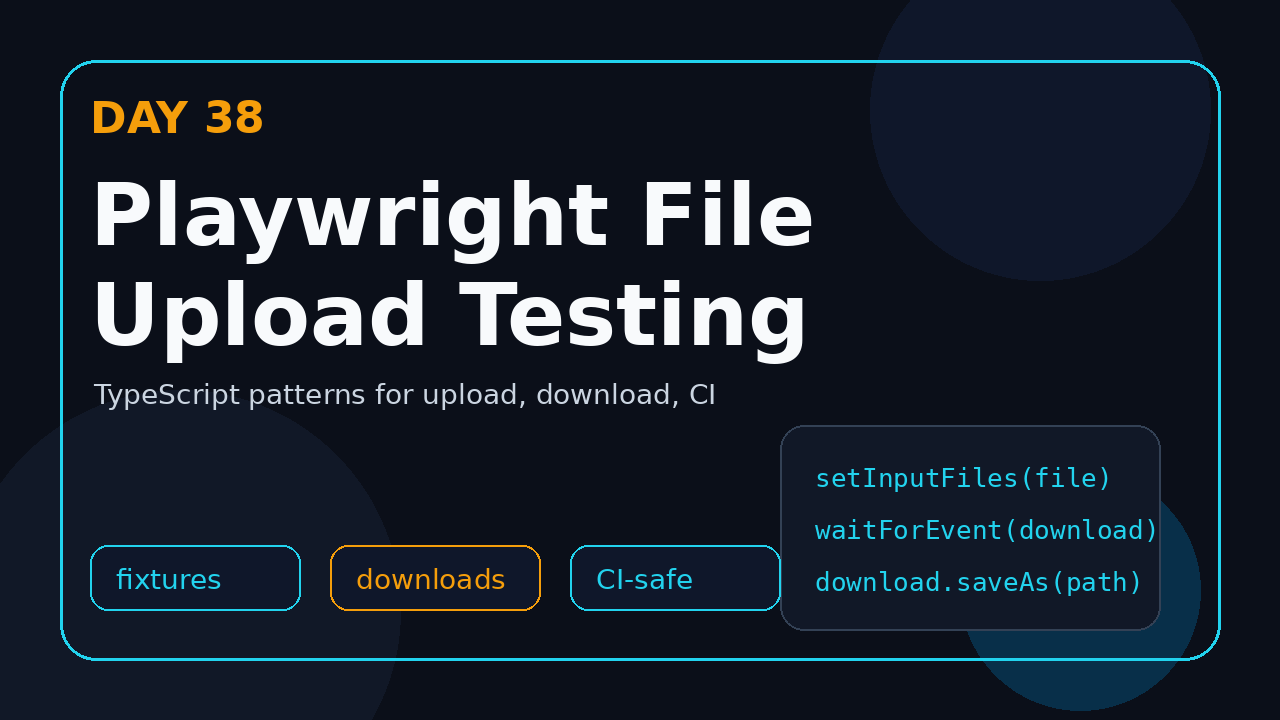
Playwright file upload testing looks simple until the first CI run fails because the fixture path is wrong, the download disappeared with the browser context, or the app validates a MIME type that your test never checked. Day 38 turns file upload and download flows into repeatable TypeScript tests you can run locally, in Docker, and in GitHub Actions.
I treat file workflows as contract tests between the browser, the backend, and storage. A working upload test should prove that the right file was selected, submitted, processed, and made available again when the user downloads it.
Table of Contents
- Why file workflows fail in automation
- Playwright file upload testing setup
- Single file upload with TypeScript
- Multi-file uploads and validation
- Download testing with Playwright
- Page object pattern for file workflows
- CI, Docker, and path pitfalls
- Debugging checklist
- Key takeaways
- FAQ
Contents
Why file workflows fail in automation
Most teams start with a happy-path upload test and stop there. The test clicks a file input, submits the form, and checks one toast. That is useful, but it misses the places where real users lose data.
File flows fail because they cross boundaries. The browser handles the picker. The app validates the file name, size, and type. The backend stores bytes. Another endpoint serves the file back. If the test only checks the toast, it proves almost nothing about the full workflow.
The practical risk
I see these bugs in QA teams often:
- The UI accepts
.png, but the backend rejects the actual MIME type. - The test passes on a Mac because the fixture path is case-insensitive, then fails in Linux CI.
- The download test clicks too early and misses the download event.
- The browser context closes before the downloaded file is copied to a safe folder.
- A test uses a shared fixture and later tests mutate or delete it.
Playwright gives you the primitives to test these flows properly. The official Playwright actions documentation shows locator.setInputFiles() for upload controls, and the Playwright downloads documentation explains that downloaded files live in a temporary folder and are deleted when the browser context closes. Those two facts drive most of the design decisions in this tutorial.
What we will build today
By the end of this lesson, you will have:
- A clean fixture folder for upload files.
- Typed helpers for single-file and multi-file upload.
- Tests that validate UI state, API response, and downloaded file content.
- A page object that keeps file workflow details out of your specs.
- A CI checklist that prevents path and permission issues.
This is Day 38 of the series. If you need the base project first, start with Day 1: Playwright TypeScript setup. If your file flow also depends on auth state, keep Playwright authentication open in another tab.
Playwright file upload testing setup
Playwright file upload testing becomes easier when fixtures are boring. I want fixture files that are tiny, committed to the repo, and named so clearly that a failure message tells me what was being tested.
Recommended folder structure
Create a folder named tests/fixtures/files. Keep these files under version control unless the file contains private data. For large files, generate them during setup instead of committing them.
tests/
  fixtures/
    files/
      valid-invoice.pdf
      valid-avatar.png
      invalid-extension.txt
      large-2mb.bin
  pages/
    DocumentsPage.ts
  specs/
    file-upload.spec.ts
playwright.config.ts
Small fixture files are enough for most tests. You do not need a 40 MB PDF to test a max-size validation message. Use a controlled file size that hits the boundary you care about.
Install and verify Playwright
If you are joining the series late, use the standard install path:
npm init playwright@latest
npx playwright test --version
npx playwright install --with-deps
Playwright is a mature tool now. The Microsoft Playwright GitHub repository shows more than 93,000 stars at the time of this cron run, and the npm API reported 197,152,958 downloads for @playwright/test in the last month.
Config for reliable artifacts
I keep traces and screenshots enabled on failure. File tests have more moving parts than simple navigation tests, so a trace is often the fastest way to see whether the picker, upload request, or download event failed.
// playwright.config.ts
import { defineConfig, devices } from '@playwright/test';

export default defineConfig({
  testDir: './tests/specs',
  timeout: 45_000,
  expect: { timeout: 10_000 },
  use: {
    baseURL: process.env.BASE_URL ?? 'http://localhost:3000',
    trace: 'retain-on-failure',
    screenshot: 'only-on-failure',
    video: 'retain-on-failure',
  },
  projects: [
    { name: 'chromium', use: { ...devices['Desktop Chrome'] } },
  ],
});
Screenshot description: capture the Playwright HTML report after a failed upload. The trace timeline should show the file input action, the network request, and the assertion that failed. This screenshot is useful for explaining failures to developers because it shows browser and network behavior together.
Single file upload with TypeScript
The simplest reliable upload test uses setInputFiles(). This bypasses the native OS file chooser and sets the file directly on the input element. That makes the test deterministic across local machines and CI containers.
Basic single-file test
Here is a direct spec for a profile avatar upload. The test validates the visible filename, clicks save, and checks the success message.
// tests/specs/file-upload.spec.ts
import { test, expect } from '@playwright/test';
import path from 'node:path';

test('uploads a profile avatar', async ({ page }) => {
  await page.goto('/settings/profile');

  const filePath = path.join(
    process.cwd(),
    'tests',
    'fixtures',
    'files',
    'valid-avatar.png'
  );

  await page.getByLabel('Avatar').setInputFiles(filePath);

  await expect(page.getByText('valid-avatar.png')).toBeVisible();
  await page.getByRole('button', { name: 'Save profile' }).click();
  await expect(page.getByRole('status')).toContainText('Profile updated');
});
The important detail is process.cwd(). Do not depend on the spec file location unless you control how every developer launches tests. CI usually runs from the repository root, but IDE extensions and nested package scripts can change assumptions.
Many modern UIs hide the real file input behind a styled button. Playwright can still target the input if it is in the DOM. Prefer a label, test id, or a stable input selector.
await page
  .locator('input[type="file"][name="document"]')
  .setInputFiles('tests/fixtures/files/valid-invoice.pdf');
If your app opens a custom modal before exposing the input, click the visible button first, then call setInputFiles() on the input. Do not try to automate the operating system picker.
Validate more than the toast
A better test also checks the request. You can wait for the upload endpoint and assert that the backend accepted the file.
test('uploads invoice and waits for API confirmation', async ({ page }) => {
  await page.goto('/billing/documents');

  const uploadResponse = page.waitForResponse(response =>
    response.url().includes('/api/documents') &&
    response.request().method() === 'POST'
  );

  await page.getByLabel('Upload invoice').setInputFiles(
    'tests/fixtures/files/valid-invoice.pdf'
  );
  await page.getByRole('button', { name: 'Upload' }).click();

  const response = await uploadResponse;
  expect(response.status()).toBe(201);

  await expect(page.getByText('valid-invoice.pdf')).toBeVisible();
});
This pattern pairs well with the network concepts from Playwright network mocking. For upload workflows, I usually run one real integration test and several mocked validation tests.
Multi-file uploads and validation
Multi-file upload bugs are common because the UI and backend often disagree on limits. The UI may allow five files, while the API accepts three. A test should make that mismatch visible.
Upload multiple files
setInputFiles() accepts an array. Keep the file list explicit so the test reads like a scenario.
test('uploads multiple supporting documents', async ({ page }) => {
  await page.goto('/claims/new');

  await page.getByLabel('Supporting documents').setInputFiles([
    'tests/fixtures/files/valid-invoice.pdf',
    'tests/fixtures/files/valid-avatar.png',
  ]);

  await expect(page.getByText('valid-invoice.pdf')).toBeVisible();
  await expect(page.getByText('valid-avatar.png')).toBeVisible();
});
Clear a selected file
Users change their mind. Your test should prove the app handles that path. Pass an empty array to clear the selected files.
await page.getByLabel('Supporting documents').setInputFiles([
  'tests/fixtures/files/valid-invoice.pdf',
]);
await expect(page.getByText('valid-invoice.pdf')).toBeVisible();

await page.getByLabel('Supporting documents').setInputFiles([]);
await expect(page.getByText('valid-invoice.pdf')).toBeHidden();
Negative test cases that matter
I like four negative cases for file upload components:
- Wrong extension: upload
invalid-extension.txtwhen the app accepts only PDF. - Wrong MIME type: a renamed file that looks valid by extension but has invalid content.
- Too large: a generated binary file just above the accepted limit.
- Duplicate file: upload the same document twice and check the expected behavior.
test('rejects unsupported file type', async ({ page }) => {
  await page.goto('/billing/documents');

  await page.getByLabel('Upload invoice').setInputFiles(
    'tests/fixtures/files/invalid-extension.txt'
  );

  await expect(page.getByRole('alert')).toContainText(
    'Only PDF files are supported'
  );
  await expect(page.getByRole('button', { name: 'Upload' })).toBeDisabled();
});
Screenshot description: show the upload component after selecting an invalid file. The screenshot should include the filename, the red validation message, and the disabled upload button. This catches UI regressions that an API-only check misses.
Download testing with Playwright
Upload tests prove one side of the workflow. Download tests prove the user can retrieve what the system generated or stored. This matters for invoices, reports, statements, export CSV files, evidence packs, and compliance documents.
Correct download event pattern
Set up the download wait before clicking the link. If you click first and wait second, you can miss the event on fast machines.
import { test, expect } from '@playwright/test';
import fs from 'node:fs/promises';
import path from 'node:path';

test('downloads invoice PDF', async ({ page }, testInfo) => {
  await page.goto('/billing/documents');

  const downloadPromise = page.waitForEvent('download');
  await page.getByRole('link', { name: 'Download invoice' }).click();
  const download = await downloadPromise;

  expect(download.suggestedFilename()).toBe('invoice-2026-07.pdf');

  const targetPath = path.join(testInfo.outputDir, download.suggestedFilename());
  await download.saveAs(targetPath);

  const stats = await fs.stat(targetPath);
  expect(stats.size).toBeGreaterThan(500);
});
The official downloads guide is clear that downloaded files are deleted when the browser context closes. That is why the test saves the file to testInfo.outputDir. The output directory is scoped to the test, which prevents parallel workers from overwriting each other.
Validate CSV content
For CSV exports, do not stop at filename and size. Read the file and check the headers or a known row.
test('downloads filtered user export', async ({ page }, testInfo) => {
  await page.goto('/admin/users?status=active');

  const downloadPromise = page.waitForEvent('download');
  await page.getByRole('button', { name: 'Export CSV' }).click();
  const download = await downloadPromise;

  const csvPath = path.join(testInfo.outputDir, download.suggestedFilename());
  await download.saveAs(csvPath);

  const csv = await fs.readFile(csvPath, 'utf-8');
  expect(csv).toContain('email,status,createdAt');
  expect(csv).toContain('active');
});
Validate download failures
Not every download should succeed. If a user lacks permission, the UI should show an error or the API should return a safe response. Test that path too.
test('does not download restricted document', async ({ page }) => {
  await page.goto('/documents/restricted');

  const responsePromise = page.waitForResponse(response =>
    response.url().includes('/api/documents/restricted/download')
  );

  await page.getByRole('button', { name: 'Download' }).click();

  const response = await responsePromise;
  expect(response.status()).toBe(403);
  await expect(page.getByRole('alert')).toContainText('You do not have access');
});
This type of test is useful in product companies where QA owns risk around finance exports, customer documents, and admin reports. In services companies such as TCS or Infosys, I would still add it to a reusable accelerator because every enterprise app has document permissions somewhere.
Page object pattern for file workflows
File tests become noisy if every spec repeats paths, selectors, and download logic. A small page object keeps specs readable without hiding assertions.
Create a typed page object
// tests/pages/DocumentsPage.ts
import { expect, Locator, Page, TestInfo } from '@playwright/test';
import path from 'node:path';

export class DocumentsPage {
  readonly page: Page;
  readonly invoiceInput: Locator;
  readonly uploadButton: Locator;
  readonly status: Locator;

  constructor(page: Page) {
    this.page = page;
    this.invoiceInput = page.getByLabel('Upload invoice');
    this.uploadButton = page.getByRole('button', { name: 'Upload' });
    this.status = page.getByRole('status');
  }

  async goto() {
    await this.page.goto('/billing/documents');
  }

  async uploadInvoice(fileName: string) {
    const filePath = path.join(process.cwd(), 'tests/fixtures/files', fileName);
    await this.invoiceInput.setInputFiles(filePath);
    await this.uploadButton.click();
    await expect(this.status).toContainText('Document uploaded');
  }

  async downloadInvoice(testInfo: TestInfo) {
    const downloadPromise = this.page.waitForEvent('download');
    await this.page.getByRole('link', { name: 'Download invoice' }).click();
    const download = await downloadPromise;

    const targetPath = path.join(testInfo.outputDir, download.suggestedFilename());
    await download.saveAs(targetPath);
    return { download, targetPath };
  }
}
Use the page object in a spec
// tests/specs/document-workflow.spec.ts
import { test, expect } from '@playwright/test';
import fs from 'node:fs/promises';
import { DocumentsPage } from '../pages/DocumentsPage';

test('uploads and downloads an invoice', async ({ page }, testInfo) => {
  const documents = new DocumentsPage(page);
  await documents.goto();

  await documents.uploadInvoice('valid-invoice.pdf');

  const { download, targetPath } = await documents.downloadInvoice(testInfo);
  expect(download.suggestedFilename()).toContain('invoice');

  const stats = await fs.stat(targetPath);
  expect(stats.size).toBeGreaterThan(500);
});
This gives you a reusable workflow without turning the page object into a black box. The spec still owns the business assertion: the downloaded file should look like an invoice and should not be empty.
When not to use a page object
Use page objects only when the behavior appears in several specs. A one-off admin screen does not need a new class.
CI, Docker, and path pitfalls
Local file tests are forgiving. CI file tests are strict. Linux is case-sensitive, containers may run as a non-root user, and the filesystem may be read-only outside the workspace.
Use test output folders
Never save downloads into the repo root. Use testInfo.outputDir or a temporary directory that Playwright creates for the test. This prevents cross-test pollution when workers run in parallel.
const targetPath = path.join(testInfo.outputDir, download.suggestedFilename());
await download.saveAs(targetPath);
Generate large files safely
If you need a boundary test for file size, generate the file during test setup. This avoids committing heavy binaries.
import fs from 'node:fs/promises';
import path from 'node:path';

test.beforeAll(async () => {
  const filePath = path.join(process.cwd(), 'tests/fixtures/files/large-2mb.bin');
  const twoMb = Buffer.alloc(2 * 1024 * 1024, 'a');
  await fs.writeFile(filePath, twoMb);
});
Clean up generated files if they are not inside a test output directory. CI workspaces are disposable, but your local repo is not.
GitHub Actions example
Here is a minimal workflow. It installs browsers with dependencies, runs tests, and uploads Playwright artifacts when a failure happens.
name: playwright-file-tests

on:
  push:
  pull_request:

jobs:
  test:
    runs-on: ubuntu-latest
    steps:
      - uses: actions/checkout@v4
      - uses: actions/setup-node@v4
        with:
          node-version: 22
      - run: npm ci
      - run: npx playwright install --with-deps
      - run: npx playwright test tests/specs/file-upload.spec.ts
      - uses: actions/upload-artifact@v4
        if: failure()
        with:
          name: playwright-report
          path: |
            playwright-report/
            test-results/
For CI design around sharding and artifacts, read Day 18 on Playwright CI sharding. File tests often take longer than simple UI checks, so grouping them intentionally keeps the suite predictable.
Debugging checklist
When a file test fails, I do not guess. I walk through the boundary where the file moves from one system to another.
Use this 10-point checklist
- Does the fixture path exist from
process.cwd()? - Is the filename case exactly the same in Git and Linux?
- Is the input a real
input[type=file]element? - Does the input support multiple files when the test sends an array?
- Does the app validate extension, MIME type, and size consistently?
- Did the test start
waitForEvent('download')before clicking? - Was the downloaded file saved before the browser context closed?
- Is the test writing to a safe output directory?
- Does the trace show the upload request and response?
- Can the same file be uploaded manually in the test environment?
Common pitfalls
The most common pitfall is testing implementation instead of behavior. A test that only checks an internal CSS class after file selection is weak. A test that checks visible filename, API status, and a later download is much stronger.
The second pitfall is using production-like files with private data. Keep fixtures synthetic. If you need realistic PDFs, create generated sample files with fake customer names and fake account numbers.
The third pitfall is not separating validation tests from storage tests. You do not need every negative validation test to hit real storage. Mock the API for UI validation, and keep one or two real end-to-end storage tests as confidence checks.
India context for SDETs
File workflow testing is a small skill that signals seniority. A beginner writes one upload test. A strong SDET designs fixture strategy, API checks, artifact handling, and CI cleanup. In India, that difference matters when moving from service-company automation roles to product-company SDET roles in the ₹25-40 LPA band. Interviewers notice when you can explain why downloads must be saved before the context closes.
Key takeaways
Playwright file upload testing should prove more than “the file picker worked.” It should prove the workflow works from selection to storage to download.
- Use
setInputFiles()for deterministic uploads. Do not automate the OS picker. - Keep fixtures small, synthetic, named clearly, and committed when practical.
- Start the download wait before clicking the download trigger.
- Save downloads into
testInfo.outputDirbefore the browser context closes. - Validate file content for CSV and text exports, not just filename and size.
- Use page objects only when they reduce repeated workflow code.
Tomorrow, take one real file workflow in your product and add three checks: selected filename, upload API status, and downloaded file content. That is the minimum bar I expect from a production-grade SDET test.
FAQ
Can Playwright upload files without opening the operating system picker?
Yes. Use locator.setInputFiles(). It sets the files directly on the file input and avoids native OS dialogs, which are not reliable for browser automation.
Target the actual input[type=file] element if it exists in the DOM. Use a label, test id, or specific selector. Click the visible upload button only if the app creates the input after that action.
Where should I save downloaded files?
Use testInfo.outputDir. It is scoped per test and works well with parallel execution. Do not save downloads into the repository root or a shared folder.
Should I validate the downloaded file content?
For CSV, JSON, TXT, and generated reports, yes. For PDFs or images, at least validate filename, size, and key metadata. If the file is business-critical, add a deeper parser later.
Is file workflow testing useful for interviews?
Yes. It lets you show practical Playwright knowledge, TypeScript structure, CI thinking, and risk awareness. That combination is stronger than another basic login test.