
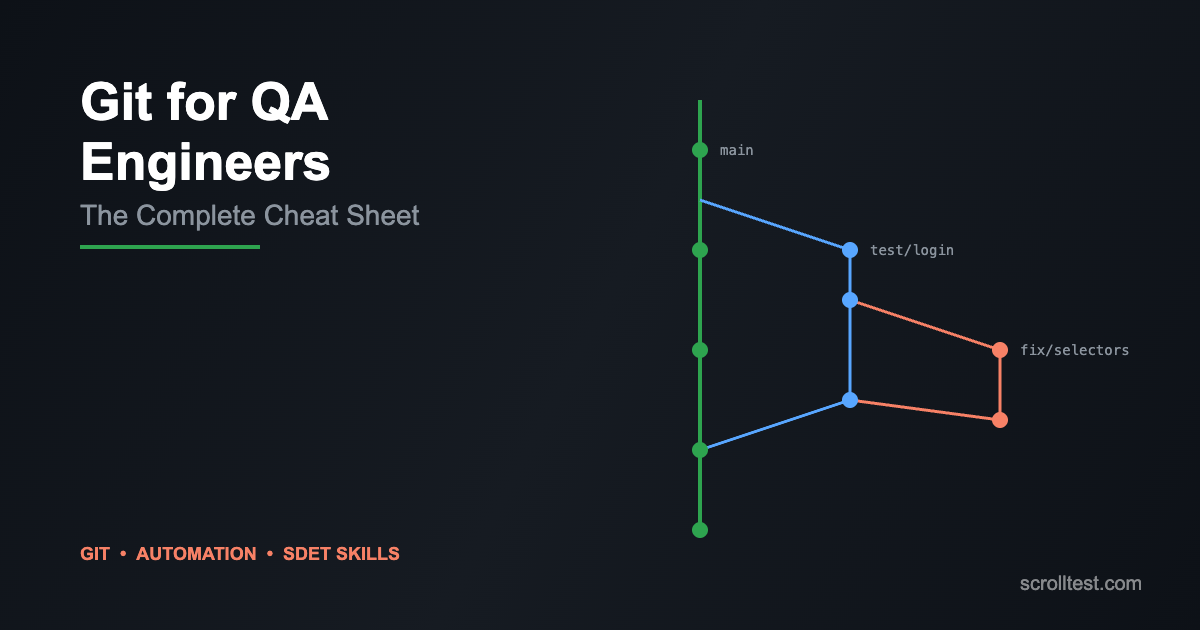
Git for QA Engineers: The Complete Cheat Sheet That Nobody Ever Taught You
Contents
The Day I Lost Three Hours of Test Code to a Bad Git Merge
Aston Cook, a Senior QA Automation Engineer with over 4 million LinkedIn impressions, posted something that resonated with thousands of testers: “Nobody teaches QA engineers Git. They teach developers Git. Then they assume QA will figure it out. So most QA engineers learn just enough to be dangerous — git add, git commit, git push. That’s it. And when something goes wrong, they panic.”
331 reactions and 64 reposts later, it was clear this hit a nerve. I have been that panicking QA engineer. I once lost three hours of carefully crafted Playwright test code because I resolved a merge conflict wrong and did not know how to recover. I learned Git the hard way. You do not have to.
This guide covers every Git command and workflow that QA automation engineers actually use — not the theoretical stuff from developer tutorials, but the practical scenarios you face every week working on shared test repositories.
Why QA Engineers Must Master Git (Not Just the Basics)
If you write automated tests, you work in code repositories. If you work in code repositories, Git is not optional — it is infrastructure. Here is what happens when QA engineers only know the basics: merge conflicts in shared Page Object files go unresolved for days, test branches diverge from main and nobody knows how to reconcile them, broken test suites get committed because nobody knows how to revert, and PR reviews for test code become bottlenecks because QA engineers struggle with the Git workflow.
Mastering Git does not mean memorizing every command. It means understanding branching strategy, knowing how to navigate history, resolving conflicts confidently, and recovering from mistakes without losing work.
The Commands You Actually Use Every Week
Branching: Your Daily Workflow Foundation
Every test automation task should start on a branch. Never commit directly to main. Here is the workflow:
# Create a new branch for your test automation task
git checkout -b test/JIRA-1234-login-page-tests

# Check which branch you're on (do this often)
git branch --show-current

# List all branches (local and remote)
git branch -a

# Switch between branches
git checkout main
git checkout test/JIRA-1234-login-page-tests

# Delete a branch after it's merged
git branch -d test/JIRA-1234-login-page-tests

# Force delete a branch (unmerged work — use carefully)
git branch -D test/abandoned-experiment
QA naming convention: Use prefixes that identify test branches: test/ for test automation, fix/ for test fixes, refactor/ for test refactoring. Include the Jira ticket ID. This makes it easy for everyone to identify QA work in the repository.
Stashing: Save Work Without Committing
You are halfway through writing a test when a critical bug needs immediate testing on a different branch. You do not want to commit half-finished work. Stash it.
# Save your current changes without committing
git stash

# Save with a descriptive message (recommended)
git stash push -m "WIP: login page test - assertion incomplete"

# List all stashes
git stash list

# Restore the most recent stash (and remove it from stash list)
git stash pop

# Restore a specific stash (keep it in the list)
git stash apply stash@{2}

# Delete a specific stash
git stash drop stash@{0}

# Clear all stashes
git stash clear
QA scenario: You are writing API tests on your branch. A production bug is reported and you need to switch to main to run the regression suite immediately. Stash your incomplete work, switch branches, run the suite, switch back, pop the stash, and continue exactly where you left off.
Rebasing: Keep Your Branch Up to Date
When your test branch falls behind main (because other developers have merged their work), you need to bring your branch up to date. Rebasing replays your commits on top of the latest main, creating a clean, linear history.
# Update your branch with the latest from main
git checkout test/JIRA-1234-login-page-tests
git fetch origin
git rebase origin/main

# If conflicts occur during rebase:
# 1. Fix the conflicting files
# 2. Stage the resolved files
git add path/to/resolved-file.ts
# 3. Continue the rebase
git rebase --continue

# If things go wrong, abort and return to pre-rebase state
git rebase --abort
Important: Only rebase branches that have not been shared with others. If multiple people are working on the same branch, use merge instead of rebase to avoid rewriting shared history.
Cherry-Picking: Grab Specific Commits
Sometimes you need one specific commit from another branch — maybe a utility function a colleague wrote, or a configuration fix that your tests depend on — without merging the entire branch.
# Find the commit hash you want
git log --oneline origin/main

# Cherry-pick that specific commit onto your current branch
git cherry-pick abc1234

# Cherry-pick without committing (useful for reviewing first)
git cherry-pick --no-commit abc1234

# Cherry-pick a range of commits
git cherry-pick abc1234..def5678
QA scenario: A colleague updated the base test configuration (timeouts, browser settings) on their branch. You need that change now but their branch has other unfinished work. Cherry-pick just the config commit onto your branch.
When tests start failing and nobody knows why, Git history is your detective tool.
# See recent commits with a summary
git log --oneline -20

# See commits that changed a specific file
git log --oneline -- tests/login.spec.ts

# See exactly what changed in a specific commit
git show abc1234

# See who last modified each line (find who broke a test)
git blame tests/login.spec.ts

# Find which commit introduced a bug (binary search)
git bisect start
git bisect bad          # current commit is broken
git bisect good abc1234 # this older commit was working
# Git will checkout middle commits for you to test
# After each test, mark:
git bisect good  # or
git bisect bad
# Git narrows down to the exact commit that broke things
git bisect reset  # when done

# Search for a string in commit history
git log -S "data-testid" --oneline
QA superpower: git bisect is incredibly powerful for QA. When your test suite was green last week and red today, bisect automatically finds the exact commit that broke it — even across hundreds of commits. This turns a multi-hour investigation into a 5-minute process.
Undoing Mistakes: The Safety Net
Every QA engineer needs to know how to undo things without losing work.
# Undo the last commit but keep changes staged
git reset --soft HEAD~1

# Undo the last commit and unstage changes (keep files modified)
git reset --mixed HEAD~1

# Discard changes in a specific file (revert to last committed version)
git checkout -- tests/login.spec.ts

# Create a new commit that reverses a previous commit (safe for shared branches)
git revert abc1234

# Recover a deleted branch or lost commits
git reflog
# Find the commit hash, then:
git checkout -b recovered-branch abc1234
Golden rule: On shared branches, use git revert (creates a new commit). On your personal branches, use git reset (rewrites history). Never use git reset --hard on a shared branch.
QA-Specific Git Scenarios
Handling Merge Conflicts in Page Object Files
Page Objects are the most common source of merge conflicts in test automation repos because multiple QA engineers add selectors and methods to the same files. Here is how to resolve them cleanly.
# When you see merge conflict markers in a Page Object:
<<<<<<< HEAD
  async clickLoginButton() {
    await this.page.click('[data-testid="login-btn"]');
  }
=======
  async clickSignInButton() {
    await this.page.click('#sign-in-button');
  }
>>>>>>> feature/new-login-tests

# Resolution: Keep both methods if they serve different purposes
# Or choose the correct one based on the current UI
# After resolving, stage and commit:
git add tests/pages/LoginPage.ts
git commit -m "resolve: merge conflict in LoginPage - keep both button methods"
Prevention tip: Structure Page Objects so that each QA engineer works on different page files whenever possible. Use a shared base class for common utilities and separate files for page-specific selectors.
Reverting a Broken Test Suite
Someone merged a PR that broke the entire test suite. CI is red. Here is how to fix it fast.
# Find the commit that broke things
git log --oneline -10

# Revert that specific commit (creates a new commit that undoes it)
git revert abc1234 --no-edit

# If multiple commits need reverting, revert them in reverse order
git revert def5678 --no-edit
git revert abc1234 --no-edit

# Push the fix
git push origin main
Git Workflow Best Practices for Automation Engineers
Commit frequently, push regularly. Small, focused commits are easier to review, easier to revert, and easier to understand in history. Commit after each completed test case or logical change, not after an entire day of work.
Write descriptive commit messages. “fix tests” tells nobody anything. “fix: update login page selectors after UI redesign (JIRA-1234)” tells your future self and your team exactly what changed and why.
Pull before you push. Always git pull --rebase before pushing to avoid unnecessary merge commits and catch conflicts early.
Use .gitignore properly. Test reports, screenshots, videos, node_modules, and environment files should never be committed. Your .gitignore should include:
# .gitignore for test automation repos
node_modules/
test-results/
playwright-report/
screenshots/
videos/
.env
.env.local
*.log
allure-results/
allure-report/
Review test code PRs seriously. Test code deserves the same review rigor as application code. Review for readability, maintainability, proper assertions, and test isolation — not just “does it pass.”
Frequently Asked Questions
I accidentally committed to main instead of my branch. How do I fix it?
If you have not pushed yet: create a new branch from your current position (git branch test/my-work), then reset main back (git checkout main && git reset --hard origin/main), then switch to your new branch. If you already pushed: use git revert on main to undo the commit, then cherry-pick it onto a new branch.
How do I resolve merge conflicts without losing work?
Before resolving, create a backup branch (git branch backup-before-merge). Then resolve conflicts file by file. Use a visual merge tool (VS Code’s built-in merge editor is excellent) rather than trying to edit conflict markers manually. After resolving, run your tests to verify nothing broke. If something goes wrong, your backup branch still has your original work.
Should QA engineers use Git GUI tools or the command line?
Use both. GUI tools (VS Code Git panel, GitKraken, Sourcetree) are excellent for visualizing branch history, reviewing diffs, and resolving merge conflicts. The command line is essential for automation scripts, CI/CD pipelines, and operations that GUIs don’t support well (bisect, reflog, interactive rebase). Start with the GUI, learn the commands it’s running, and gradually use the command line for common operations.
What branching strategy works best for test automation repos?
For most QA teams, a simplified Git Flow works well: main (always green, production-ready tests), feature branches (one per Jira ticket or test story), and a develop branch if you need a staging area for integration testing of new tests before merging to main. Avoid long-lived branches — they diverge and create painful merges.
References
- Aston Cook — Git for QA Engineers Post (LinkedIn, 331 reactions)
- Git — Official Documentation
- Atlassian — Git Tutorials
- Learn Git Branching — Interactive Tutorial
- Oh Shit, Git!?! — Common Mistake Recovery Guide
- Vincent Driessen — A Successful Git Branching Model
- Conventional Commits — Commit Message Standard
- Playwright — CI/CD Integration Guide


